Latest Version
More About Epson EP-702A Resetter
Epson EP-702A Resetter: A Comprehensive Guide to Restoring Your Printer’s Functionality
The Epson EP-702A is a popular inkjet printer known for its high-quality prints and efficiency in various printing tasks. However, like all printers, it can encounter issues over time, especially with ink waste pads that accumulate excess ink, leading to error messages or the inability to print. When this happens, you might need a resetter tool to restore the printer to its full functionality. In this article, we will explore the purpose, use, and importance of an Epson EP-702A Resetter, offering a step-by-step guide to help you through the reset process.
What is an Epson EP-702A Resetter?
An Epson EP-702A Resetter is a software tool designed to reset the internal waste ink counter of the printer. The waste ink counter keeps track of the amount of ink absorbed by the printer’s waste pads, which are part of the ink delivery system. When the waste ink pads reach their capacity, the printer stops working and displays an error message, such as "Service Required." The Resetter tool effectively clears this counter, allowing you to continue using the printer without the need for replacing the pads or sending it for servicing.
Why Do You Need an Epson EP-702A Resetter?
The primary reason for using the resetter is to fix the issue caused by a full waste ink pad. The waste ink pads are responsible for absorbing ink that is flushed out during cleaning cycles or print head maintenance. Over time, these pads become saturated, and the printer detects this through the waste ink counter. If you don't use a resetter, the printer may refuse to print or work properly.
The resetter is a cost-effective and efficient solution to this problem, as it avoids the need for expensive repairs or replacements of the waste ink pads. However, it's important to remember that while the resetter clears the counter, it doesn't physically empty the waste ink pads. You should monitor the printer's performance and consider replacing the waste ink pads if the problem persists.
How to Use the Epson EP-702A Resetter
Step 1: Download the Resetter Software
The first step is to obtain the Epson EP-702A Resetter software. While Epson does not officially provide this software, you can find it through various third-party websites. Be cautious when downloading software from non-official sources and ensure the software is safe and compatible with your printer model.
Step 2: Install the Resetter Software
Once you have downloaded the software, install it on your computer. Follow the installation prompts, and make sure you have the necessary drivers and software for your printer installed beforehand. You may need to connect your Epson EP-702A to your computer via USB for the resetter to work correctly.
Step 3: Run the Resetter Tool
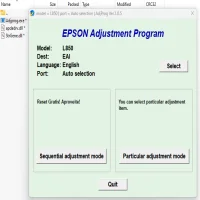
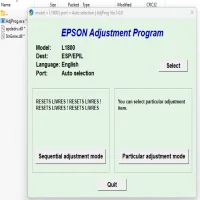
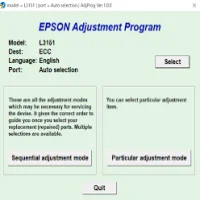
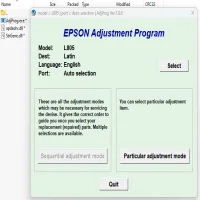
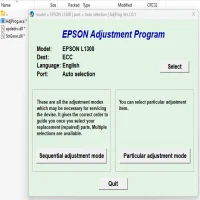
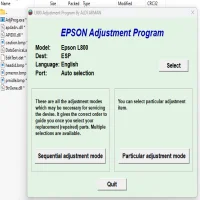
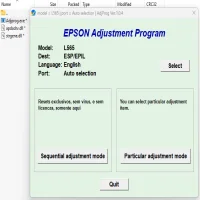
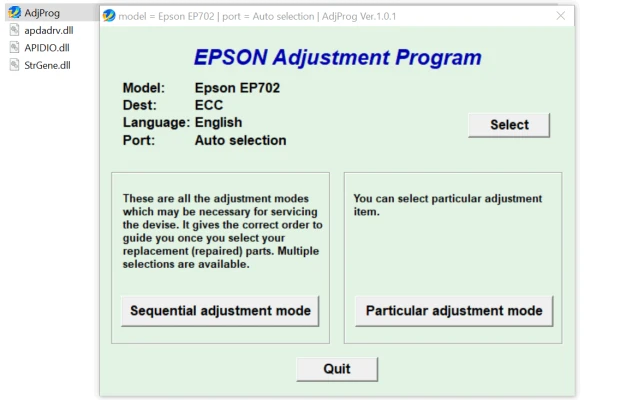
After the software is installed, launch the Resetter tool. The interface should prompt you to select your printer model. Make sure to choose the correct model—Epson EP-702A—before proceeding.
Step 4: Enter the Reset Mode
In the software interface, you will find an option to enter "Reset Mode" or "Service Mode." Select this option to start the resetting process. The tool will communicate with the printer, resetting the waste ink counter to zero.
Step 5: Complete the Reset
Once the reset process is complete, the tool will display a confirmation message. At this point, your printer’s waste ink counter will be reset, and it should resume functioning normally.
Step 6: Test the Printer
After resetting the printer, it's a good idea to perform a test print to make sure everything is working correctly. This test will help confirm that the reset was successful and that the printer is no longer displaying error messages.
Tips and Precautions
- Backup Your Data: Before performing any reset, make sure your printer's settings and data are backed up. In some cases, the reset may affect custom settings or configurations.
- Monitor Waste Ink Pads: Keep an eye on the printer’s performance, as the resetter only clears the counter but doesn’t address the physical condition of the waste ink pads.
- Use Caution with Third-Party Software: As the Resetter tool is not officially provided by Epson, ensure you're downloading it from a trusted source to avoid malware or compatibility issues.
Conclusion
The Epson EP-702A Resetter is an essential tool for users who encounter the waste ink pad error or service-required messages. By resetting the waste ink counter, this software tool provides a quick and affordable solution, allowing your printer to continue functioning smoothly without the immediate need for repairs. However, it is essential to remember that this tool doesn’t physically clear the waste ink pads, so regular maintenance of your printer is still required to ensure its longevity and performance.
If you are unsure about using the resetter tool or experience any issues, it’s always best to consult with a professional technician or consider getting your printer serviced to address any underlying issues properly.
Rate the App
User Reviews


Popular Apps