Latest Version
Download NowMore About Epson L1800 Adjustment Program (Resetter) – Free Download & Complete Guide
Epson L1800 Adjustment Program (Resetter): Complete Step-by-Step Guide
The Epson L1800 is a highly popular photo printer known for its vibrant color accuracy and professional-quality prints. However, over time, users may face errors such as “Service Required” or “Waste Ink Pad Full.” To solve these problems, the Epson L1800 Adjustment Program, also known as the Resetter Tool, is an essential solution.
This guide explains what the program is, why it’s needed, and how to use it safely to restore your printer to working condition.
What Is the Epson L1800 Adjustment Program?
The Epson L1800 Adjustment Program is specialized software designed to communicate directly with your printer’s internal firmware. Its main purpose is to:
-
Reset the waste ink pad counter
-
Clear the service required error
-
Reset ink cartridge counters
-
Fix issues related to head cleaning and alignment
When your printer reaches a certain print count, Epson automatically locks it to prevent ink overflow. This tool resets those counters and lets you continue printing without visiting a service center.
Why You Need the Epson L1800 Resetter
Here are the main reasons users rely on the adjustment program:
-
Fix “Service Required” Error:
When your printer stops printing due to waste ink overflow, the resetter removes this restriction. -
Reset Waste Ink Pad Counter:
It resets the internal ink pad counter to “zero,” allowing smooth operation again. -
Save Time and Money:
Avoid costly repairs or technician visits by handling minor maintenance at home. -
Maintain High-Volume Printing:
Perfect for users who print frequently — photographers, studios, and businesses.
How to Use the Epson L1800 Adjustment Program
Follow these steps carefully to use the resetter safely:
Step 1: Download the Program
Download the latest Epson L1800 Adjustment Program (Resetter Tool) from a trusted source. Make sure it’s compatible with your Windows version (Windows 7, 8, 10, or 11).
Step 2: Extract & Install
Unzip the downloaded file and run the setup. Some versions are portable and don’t require installation.
Step 3: Connect Your Printer
Connect your Epson L1800 printer to the computer using a USB cable. Ensure the printer is turned on.
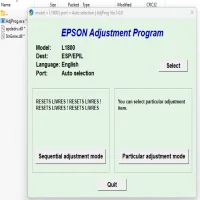
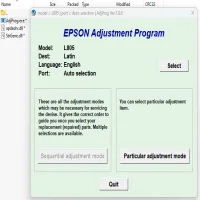
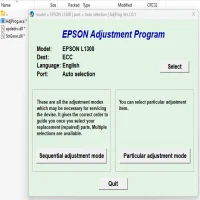
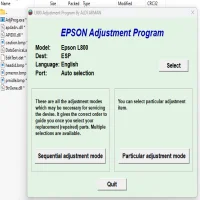
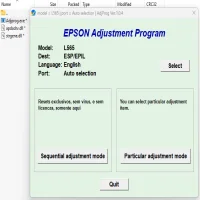
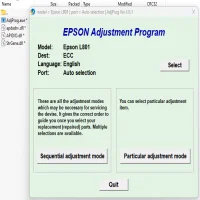
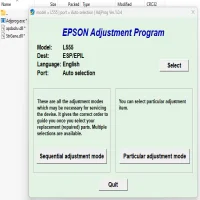
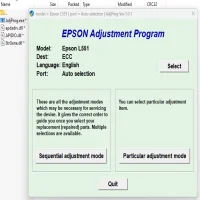
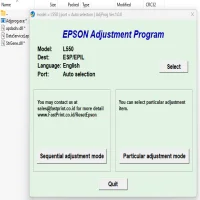
Step 4: Open the Adjustment Program
Launch the software and select your printer model (Epson L1800).
Then, click “Particular Adjustment Mode.”
Step 5: Reset the Waste Ink Pad Counter
-
Choose “Waste Ink Pad Counter” from the list.
-
Click Check, then Initialization, and finally Finish.
Your printer will reset and restart automatically.
Step 6: Test the Printer
After restarting, print a test page to ensure the reset worked correctly. The “Service Required” error should now be gone.
Important Notes Before Using the Resetter
-
Backup Printer Settings: Always create a backup before making changes.
-
Use It Carefully: Misuse of the tool may cause permanent printer errors.
-
Physical Cleaning Needed: The software only resets the counter; it doesn’t clean the waste ink pad physically.
-
Warranty Notice: Using third-party software may void the official Epson warranty.
FAQs About Epson L1800 Adjustment Program
Q1: Is the Epson L1800 Resetter safe to use?
Yes, it’s safe if you download it from a trusted source and follow the instructions carefully.
Q2: Can I use the program on Windows 11?
Yes, most updated versions work on Windows 11 and Windows 10.
Q3: Do I need to replace the waste ink pad physically?
Eventually, yes. The resetter only resets the counter; you should replace or clean the pad to prevent ink leakage.
Q4: Is this an official Epson tool?
No, this is a third-party utility. Use it at your own discretion.
Conclusion
The Epson L1800 Adjustment Program (Resetter) is a powerful and practical tool for resolving common Epson printer errors such as waste ink pad full and service required. By following this guide, you can safely reset your printer, avoid unnecessary repair costs, and extend your printer’s lifespan.
Use the tool responsibly, perform regular maintenance, and your Epson L1800 will continue producing stunning prints for years to come.
Rate the App
User Reviews

Popular Apps