
Latest Version
Download NowMore About Epson L3151 adjustment program Resetter
The Epson L3151 Adjustment Program Resetter is a specialized software tool designed to reset the internal counters of Epson L3151 inkjet printers
The Epson L3151 adjustment program, commonly referred to as a "resetter," is a specialized utility used to reset printer settings such as ink pad counters and other factory-level configurations. Here's an overview of how it works and its relevance:
What is the Epson L3151 Adjustment Program?
The Epson L3151 adjustment program is designed to:
- Reset the Waste Ink Pad Counter: Epson printers have a built-in counter that limits usage when it estimates the waste ink pad is full. The resetter overrides this limitation.
- Perform Maintenance Tasks: It allows users to run diagnostics, adjust head alignment, and perform other technical operations.
- Fix Errors: Resolves errors like the "Service Required" or blinking lights that indicate internal counter limits.
Why Would You Need It?
- Printer Lockout: When your printer stops working due to a "waste ink pad full" error.
- Maintenance: For professionals or DIY users performing regular maintenance on the printer.
- Cost-Effective: It saves the expense of taking the printer to an authorized service center.
How to Use the Adjustment Program
Download the Resetter:
- Obtain the reset tool specific to the Epson L3151 model. Ensure you download it from a trustworthy source to avoid malware.
Install the Software:
- Install the program on your PC. Most tools require compatibility with Windows.
Connect Your Printer:
- Connect your Epson L3151 to your computer via USB. Ensure the printer is powered on.
Run the Program:
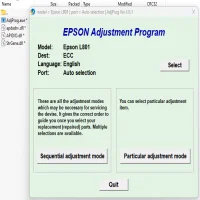
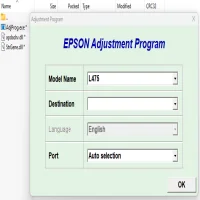
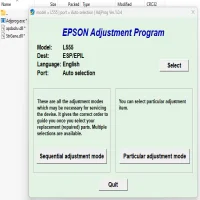
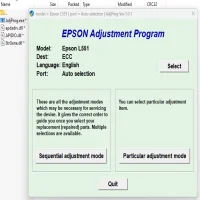
- Open the adjustment program, select your printer model, and choose the specific reset function (e.g., Waste Ink Pad Reset).
Reset the Counters:
- Follow the on-screen instructions to reset the counter. After completing the process, restart your printer.
Test Your Printer:
- Print a test page to ensure everything is working correctly.
Precautions
- Use with Caution: Frequent resets without addressing the actual waste ink pad issue can lead to ink overflow, damaging the printer.
- Check Legitimacy: Download the software only from reliable sources to avoid malicious files.
- Understand the Risks: Resetting a printer outside of official Epson support may void your warranty.
Note
Epson designs their printers with these limitations to encourage proper maintenance and avoid issues like ink leakage. Always follow best practices when using third-party tools, and if possible, replace the waste ink pads when necessary.
Rate the App
Add Comment & Review
User Reviews
Based on 0 reviews
No reviews added yet.
Comments will not be approved to be posted if they are SPAM, abusive, off-topic, use profanity, contain a personal attack, or promote hate of any kind.

More »

Popular Apps
Epson L850 Adjustment Program ( Resetter ) EPSON
Epson L1800 Adjustment Program (Resetter) – Free Download & Complete Guide
Epson L3150 Adjustment Program Reset Tool

Epson Adjustment Program Resetter L130-L220-L310-L360-L365.rar
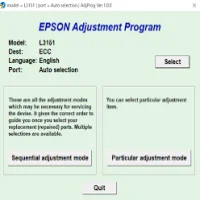
Epson L3151 adjustment program Resetter
Epson L805 Adjustment Program ( Resetter )
Epson L1300 Adjustment Program ( Resetter ) EPSON
Epson L4150 Adjustment Program Reset Tool
Epson L800 Adjustment Program ( Resetter )
Epson L565 Adjustment Program ( Resetter )