Latest Version
More About Epson EP-705A Resetter
Epson EP-705A Resetter: A Comprehensive Guide
The Epson EP-705A is a popular inkjet printer designed for both home and office use. Known for its reliability, high-quality prints, and user-friendly features, the EP-705A has become a go-to choice for many users. However, like most Epson printers, it may occasionally run into issues such as "Waste Ink Pad Full" or "Service Required" error messages. These issues are often caused by the printer's internal waste ink pads reaching their limit of ink absorption. This is where the Epson EP-705A resetter comes in handy.
What Is a Resetter?
A resetter is a software tool designed to reset a printer's internal counter. For the Epson EP-705A, the resetter tool is typically used to clear the "waste ink pad full" error, which can prevent the printer from continuing its operations. The waste ink pad absorbs excess ink during printing and cleaning cycles. Over time, these pads can fill up, triggering an error message, even if the pads themselves are not physically full. Using the resetter tool allows users to clear the internal counter and resume printing without needing to replace the waste ink pads immediately.
How Does the Epson EP-705A Resetter Work?
The Epson EP-705A resetter works by communicating with the printer's internal software to reset the ink waste counter. It does not physically clean or replace the waste ink pads, but it gives the printer a fresh start by erasing the data associated with the waste ink pads. This action tricks the printer into thinking that the pads are empty or haven't reached their full capacity, enabling it to continue printing.
Steps to Use the Epson EP-705A Resetter
Download the Resetter Tool: The first step is to download the Epson EP-705A resetter tool. It can be found on various online platforms, but it’s essential to ensure that you are downloading from a trusted and secure source to avoid malware or other issues.
Install the Tool: Once downloaded, install the resetter software on your computer. Make sure your Epson EP-705A printer is connected to the computer and powered on.
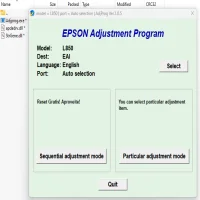
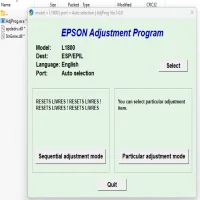
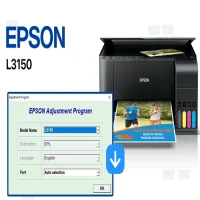
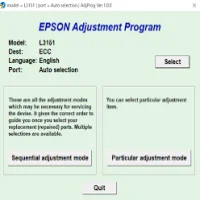
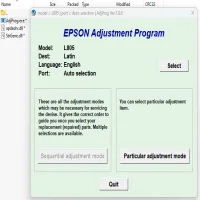
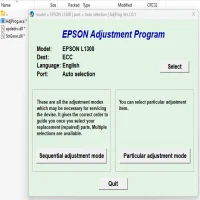
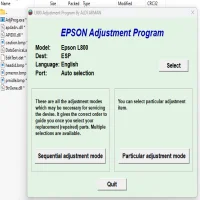
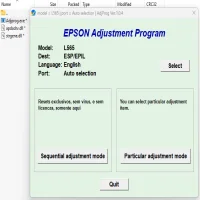
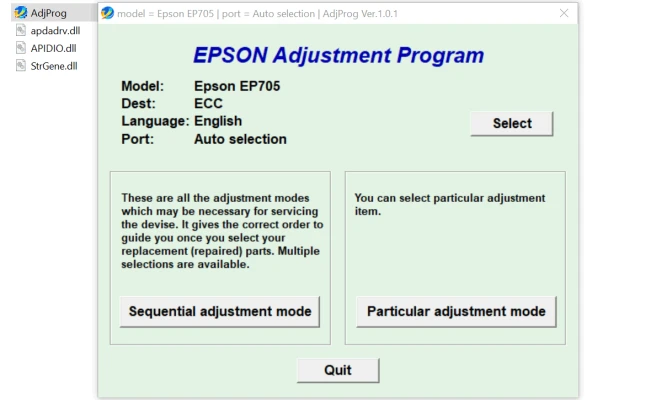
Run the Resetter: Open the resetter tool. The software will ask you to select your printer model. Choose the Epson EP-705A from the list.
Reset the Waste Ink Counter: In the resetter interface, you will find an option to reset the waste ink counter. Click on this option, and the software will communicate with your printer to reset the counter.
Restart the Printer: After the reset is complete, restart the printer to ensure that the changes are applied. The error message should now be gone, and the printer should be able to continue printing without issue.
Important Considerations When Using the Resetter
Temporary Solution: Using a resetter tool does not fix the underlying issue of a full waste ink pad. It only clears the error message. Over time, the ink pads will fill up again, and the error will reappear.
Replacement of Ink Pads: If the waste ink pads are full, it’s important to replace or clean them to avoid potential damage to your printer or issues with ink leakage.
Legal and Warranty Issues: Some users may be concerned about the legality or warranty implications of using a resetter tool. While using a resetter is generally safe, it may void the warranty if the printer is still under manufacturer support. Always check the warranty terms before proceeding.
Precaution: When using third-party tools or software, be cautious of malicious software. Always ensure you are downloading from a reputable source.
When to Replace Waste Ink Pads
If you continue using the resetter tool without replacing the waste ink pads, eventually, the pads will become too saturated to effectively absorb any more ink. When this happens, you may experience ink leaks or printer malfunctions. Replacing the waste ink pads is a more permanent solution to the problem and can help prolong the life of your printer.
Conclusion
The Epson EP-705A resetter is a useful tool to bypass temporary error messages related to waste ink pad issues. It provides a quick fix to continue printing, but it’s essential to address the root cause of the problem by replacing or cleaning the waste ink pads. For long-term maintenance, a combination of resetting the counter and properly maintaining the printer’s internal components will ensure smooth and effective printing. If you are unsure about performing these tasks yourself, it’s always a good idea to consult a professional technician for guidance.
Rate the App
User Reviews


Popular Apps