Latest Version
More About Epson EP-775A Resetter
Epson EP-775A Resetter: A Complete Guide to Restoring Your Printer's Functionality
The Epson EP-775A is a reliable and versatile all-in-one inkjet printer, ideal for home and small office use. It offers features such as high-quality prints, scanning, and copying, making it a popular choice among users. However, like all printers, the Epson EP-775A can encounter issues over time, one of the most common being the "waste ink pad" error, which can prevent the printer from functioning correctly.
In this article, we will explore what a resetter is, why it is needed for the Epson EP-775A, and how to use it safely to restore your printer’s functionality.
What is a Printer Resetter?
A printer resetter is a software tool designed to help users reset certain parameters of their printers. For Epson printers, it is especially useful in clearing errors related to the waste ink pad. The waste ink pad is a component inside the printer that absorbs excess ink during printing and cleaning cycles. Over time, this pad can become saturated, causing the printer to stop functioning and display an error message indicating the need for maintenance.
A resetter helps to bypass this error temporarily by resetting the internal counter that tracks the ink pad’s usage. It’s important to note that while a resetter can clear the error, it doesn’t physically address the waste ink pad’s condition. Users may need to replace or clean the waste ink pad to prevent further issues.
Why Do You Need a Resetter for Epson EP-775A?
Epson printers are designed to prevent damage from an overflowing waste ink pad by stopping printing operations when the ink pad reaches a certain limit. However, this feature can be frustrating when users need to continue printing but are faced with the waste ink pad error.
The Epson EP-775A resetter comes in handy by allowing users to:
- Clear the waste ink pad error: This enables printing to continue without replacing or servicing the waste ink pad immediately.
- Extend the printer’s lifespan: By clearing the error and allowing continued printing, users can prolong the lifespan of their Epson EP-775A before taking the necessary steps to replace the ink pad.
- Save money on repairs: Resetting the printer may avoid costly repair services or parts replacement, especially if you’re not ready to replace the waste ink pad.
How to Use the Epson EP-775A Resetter
Before proceeding with the reset, it’s crucial to understand that using a resetter involves some risk, especially when the waste ink pad is truly full. Overuse of the resetter without proper maintenance of the ink pad may cause ink overflow, leading to internal printer damage. If you're unsure, consult an expert or opt to replace the waste ink pad.
Here’s a step-by-step guide on how to use the Epson EP-775A resetter:
Step 1: Download the Resetter Software
The first step is to download the Epson EP-775A resetter software. Various websites and forums offer this tool, but it’s important to ensure you download it from a trustworthy source. Many resellers or printer maintenance websites offer resetter programs compatible with specific Epson printer models.
Step 2: Install the Software
Once you’ve downloaded the software, unzip the file and install the resetter on your computer. Follow the on-screen instructions to complete the installation process. Some resetters may require you to install specific drivers or software, so make sure to read any provided documentation.
Step 3: Connect Your Printer
Make sure your Epson EP-775A printer is connected to the computer via USB. Turn on the printer, as the resetter tool requires a functioning connection to communicate with the printer’s firmware.
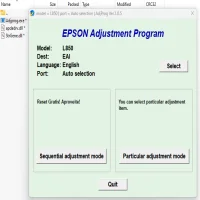
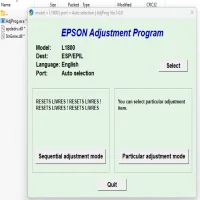
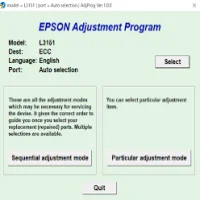
Step 4: Run the Resetter Software
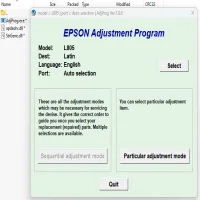
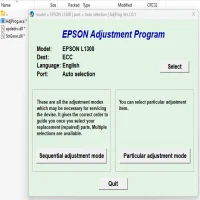
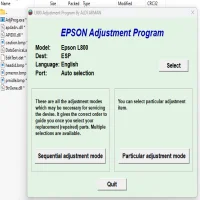
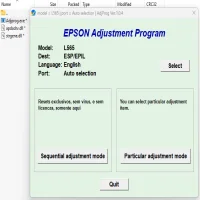
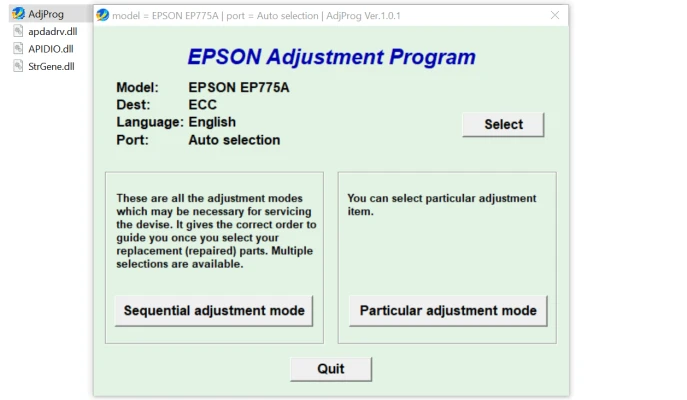
Open the resetter software and follow the on-screen prompts to start the reset process. You may be required to select your printer model from a list. Ensure you’ve chosen the correct model (Epson EP-775A) before proceeding.
Step 5: Reset the Waste Ink Counter
The software will guide you through the process of resetting the waste ink pad counter. Follow the instructions carefully and select the "Waste Ink Pad Reset" or similar option. The resetter will then initiate the reset process, and your printer should be restored to working condition.
Step 6: Test the Printer
Once the reset is complete, close the software and restart your Epson EP-775A printer. Run a test print to verify that the printer is functioning correctly and the error message has been cleared. If the issue persists, you may need to repeat the reset or consider servicing the printer.
Safety and Precautions
While using a resetter tool is relatively simple, there are several precautions you should take:
- Don’t skip ink pad replacement: A resetter should only be used temporarily to clear the error. It’s important to replace or clean the waste ink pad as soon as possible to prevent ink overflow and other issues.
- Avoid excessive resetting: Overuse of the resetter without proper maintenance can cause long-term damage to the printer.
- Backup your data: Always back up your printer settings and any important data before using third-party tools to reset your printer.
Conclusion
The Epson EP-775A resetter is an essential tool for users dealing with waste ink pad errors. It offers a quick solution to bypass errors and continue printing without needing immediate repairs. However, it should be used with caution, and the waste ink pad should be replaced or cleaned as soon as possible to prevent further issues.
By following the outlined steps and safety precautions, users can maintain their Epson EP-775A printers in optimal working condition for longer, ensuring smooth operation in both personal and professional environments.
Rate the App
User Reviews


Popular Apps