Latest Version
More About Epson EP-775AW Resetter
Epson EP-775AW Resetter: A Comprehensive Guide to Resetting Your Printer
The Epson EP-775AW is a versatile and user-friendly all-in-one printer that has gained popularity for its reliable performance, high-quality prints, and seamless wireless connectivity. However, like many other Epson printers, the EP-775AW may encounter an issue with its waste ink pads, causing it to stop printing. This is a common problem in many Epson printers, often triggered when the ink pads are nearing their capacity for ink waste. In such cases, resetting the printer becomes necessary to restore its functionality. This is where an Epson EP-775AW Resetter comes into play.
What is an Epson EP-775AW Resetter?
An Epson EP-775AW Resetter is a software tool that allows users to reset the internal counters of the printer, specifically the waste ink pad counter. Waste ink pads are responsible for absorbing the excess ink that is used during cleaning cycles, printhead maintenance, and other processes. Over time, these pads fill up, and when the counter reaches its limit, the printer will display an error, preventing it from printing. The Resetter tool helps reset this counter, effectively "resetting" the printer so it can resume normal operation.
Why Do You Need to Reset Your Epson EP-775AW?
There are a few reasons why you might need to reset your Epson EP-775AW printer:
Waste Ink Pad Counter Reset: The most common reason for using a resetter is when the printer’s waste ink pad counter has reached its limit. This is typically signaled by an error message or the printer stopping its operation. Resetting the counter allows the printer to start fresh and continue printing.
Error Messages: If your printer displays error messages like "Service Required" or "Ink Pads are at the end of their service life," it may be time to reset the device using a resetter.
Printer Performance Issues: In some cases, if the printer is not functioning as expected or seems to be stuck in maintenance mode, a reset can help clear any internal errors and restore performance.
Clearing Printhead Issues: Resetting can sometimes fix minor printhead problems, particularly if the printer is not cleaning or printing correctly.
How to Use an Epson EP-775AW Resetter
Using a resetter tool for the Epson EP-775AW is a relatively straightforward process. However, it is important to follow the steps carefully to avoid damaging your printer. Here is a step-by-step guide to help you through the process:
Step 1: Download the Resetter Tool
The first step is to obtain the Epson EP-775AW Resetter tool. Various websites offer these tools, but it’s crucial to use a trusted source to avoid downloading malicious software. Look for a reputable website that provides software specifically for your printer model.
Step 2: Install the Resetter Software
Once the software is downloaded, open the file and follow the on-screen instructions to install the resetter tool on your computer. Make sure the printer is connected to your computer via USB or Wi-Fi during installation.
Step 3: Run the Resetter Software
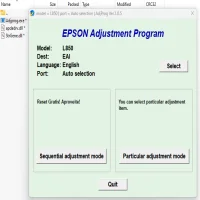
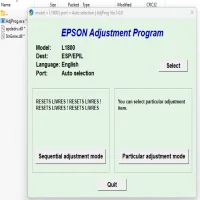
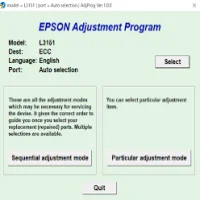
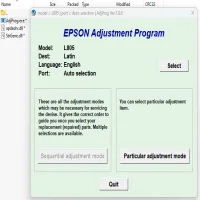
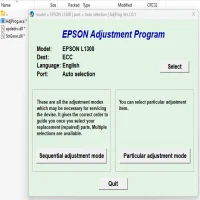
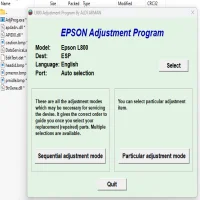
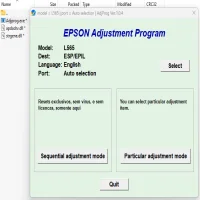
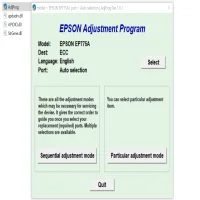
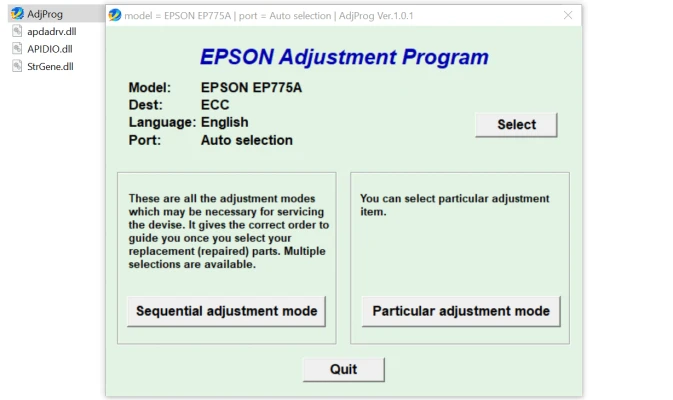
After installation, launch the resetter tool. The software should recognize your Epson EP-775AW printer, allowing you to access various options. From the main interface, select the "Waste Ink Pad Reset" option.
Step 4: Start the Reset Process
Click on the "Reset" button, and the software will begin the resetting process. This step may take a few minutes. Ensure that the printer is powered on and connected during this time. Do not interrupt the process, as this may cause further issues.
Step 5: Restart Your Printer
Once the reset is complete, the software will notify you. Restart your printer to ensure the reset is successful. After the restart, the printer should be operational again, free of the waste ink pad error.
Important Considerations When Using a Resetter Tool
Backup Your Data: Before resetting your printer, it’s a good idea to back up any important print settings or configurations. While the reset process is generally safe, it’s always better to be cautious.
Check for Any Hardware Issues: The resetter tool is designed to address software-related issues, particularly those linked to waste ink pads. If your printer is experiencing mechanical or hardware problems, the resetter may not resolve these issues.
Use Genuine Ink Cartridges: Always use genuine Epson ink cartridges to avoid problems with ink flow or print quality. Third-party cartridges can sometimes cause clogging or printing issues.
Clean the Waste Ink Pads: While the resetter tool helps reset the waste ink counter, the ink pads themselves may still be full. It’s recommended to clean or replace the waste ink pads if the printer has been used for a long period.
Conclusion
The Epson EP-775AW is a reliable and efficient printer for both home and office use, but like all printers, it can encounter issues over time. The Epson EP-775AW Resetter tool is a valuable resource for restoring your printer to its normal functionality, particularly when dealing with waste ink pad errors. By following the simple steps outlined above, you can reset your printer and get back to printing without the hassle of costly repairs or replacements.
While using a resetter tool is effective, it's important to maintain your printer properly to avoid recurring issues. Regularly checking and cleaning your waste ink pads, using genuine ink cartridges, and performing routine maintenance will ensure the longevity and reliability of your Epson EP-775AW printer.
Rate the App
User Reviews


Popular Apps