Latest Version
More About Epson EP-776A Resetter
Epson EP-776A Resetter: A Comprehensive Guide
The Epson EP-776A is a versatile and feature-packed all-in-one inkjet printer designed for both home and office use. However, like many Epson printers, users may eventually encounter issues such as printer errors or the need to reset the device due to ink pad counter problems. In this article, we explore the Epson EP-776A resetter and its significance, providing a detailed guide on how to resolve common printer errors and restore the printer’s functionality.
What is the Epson EP-776A Resetter?
The Epson EP-776A resetter is a specialized software tool designed to reset the printer’s internal counters, particularly those related to the waste ink pad. Epson printers are equipped with an ink pad that absorbs ink during printing, cleaning, and other maintenance tasks. Over time, the ink pad may become saturated, triggering an error message that prevents the printer from functioning properly.
When the waste ink pad reaches its capacity, the printer's firmware detects this and displays an error message, indicating that it’s time to reset the printer or replace the ink pad. The Epson EP-776A resetter tool allows users to bypass this issue and continue using the printer without the need for immediate maintenance.
Why Do You Need a Resetter?
Here are some common reasons why you might need an Epson EP-776A resetter:
- Waste Ink Pad Counter Error: If the waste ink pad counter reaches its limit, the printer will stop working to prevent ink spillage.
- Printer Reset: After replacing or cleaning the ink pads, a reset is required to clear the printer’s internal counter and reset its status.
- Software Glitches: Occasionally, the printer may encounter software issues that prevent normal operation, which a reset can fix.
Without a reset, the printer will continue to display an error, and the printer’s functionality will be severely limited.
How to Use the Epson EP-776A Resetter
To use the Epson EP-776A resetter, you will need to follow these steps carefully. Before starting, ensure that you have the necessary resetter tool installed on your computer, as well as a USB connection between your printer and PC.
Step 1: Download the Resetter Tool
First, download the Epson EP-776A Resetter tool from a reliable source. Ensure that you are downloading the correct version of the software that matches your printer model.
Step 2: Install the Resetter Tool
Once the software is downloaded, follow the installation instructions provided in the setup file. Typically, this involves opening the file and clicking through a series of prompts to complete the installation.
Step 3: Connect the Printer to the Computer
Connect the Epson EP-776A printer to your computer via USB. Ensure that the printer is turned on and ready to communicate with the resetter tool.
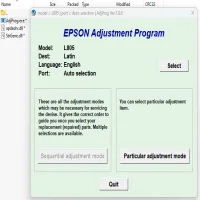
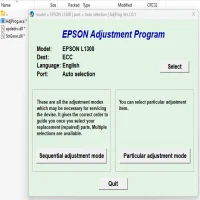
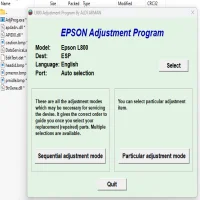
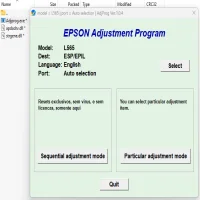
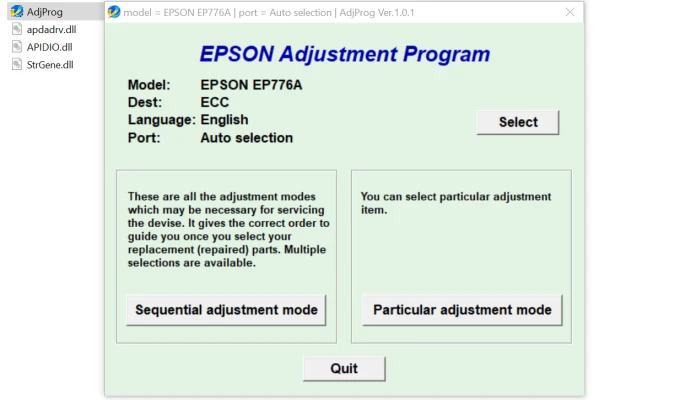
Step 4: Open the Resetter Software
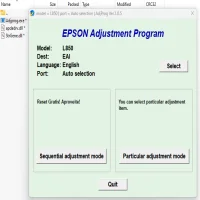
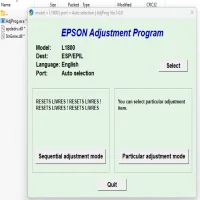
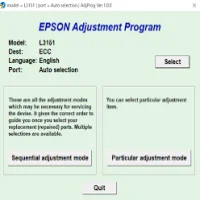
Launch the Epson resetter tool on your computer. If prompted, ensure that you have administrative privileges to run the tool.
Step 5: Select the Printer Model
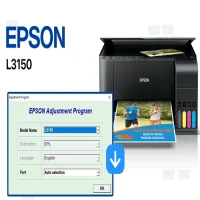
In the resetter software, select the Epson EP-776A printer model from the list of supported devices.
Step 6: Perform the Reset
Once the printer model is selected, follow the on-screen instructions to initiate the reset. Typically, this involves selecting the "Waste Ink Pad Counter Reset" option. The tool will communicate with the printer, clear the waste ink counter, and reset the internal status.
Step 7: Restart the Printer
After the reset is complete, turn off the printer and then turn it back on. The printer should now function as normal, and the error message regarding the waste ink pad should be cleared.
Important Considerations
While the resetter tool can resolve many printer errors, it is essential to understand a few things before using it:
Ink Pad Replacement: If the waste ink pad is indeed full, it’s recommended to replace the ink pad rather than just resetting the counter. The resetter bypasses the error message but does not address the physical issue of a saturated ink pad.
Printer Warranty: Using third-party software tools to reset the printer may void the warranty in some cases. Ensure that you understand the potential consequences before proceeding.
Use Caution: Be cautious when downloading and using resetter tools from the internet. Only download from trusted sources to avoid malware or other security issues.
Conclusion
The Epson EP-776A Resetter is a valuable tool for users encountering waste ink pad counter errors or needing to reset their printer for various other issues. By following the outlined steps, you can restore the printer’s functionality and continue using it without the need for costly repairs. However, it’s important to balance convenience with proper maintenance, ensuring that the ink pads are replaced when necessary to avoid long-term damage. With the right approach, the resetter tool can help keep your Epson EP-776A printer running smoothly.
Rate the App
User Reviews


Popular Apps