Latest Version
More About Epson EP-903F Adjustment Program
Epson EP-903F Adjustment Program: A Comprehensive Guide
The Epson EP-903F is a popular multifunction printer known for its exceptional print quality and versatility. However, like any other printer, it may require periodic maintenance or adjustment to ensure optimal performance. This is where the Epson EP-903F Adjustment Program comes into play. Designed to help users fix issues related to print quality, ink usage, and mechanical functions, this adjustment tool can be a valuable asset for both home and office users. Let’s explore the purpose, features, and how to use the Epson EP-903F Adjustment Program effectively.
What is the Epson EP-903F Adjustment Program?
The Epson EP-903F Adjustment Program is a software utility provided by Epson for users who need to troubleshoot or recalibrate their printer. It’s primarily used for resetting counters related to waste ink pads, adjusting print head alignment, and resolving problems like paper feed errors or print head clogging. This program allows you to restore the printer's performance to factory settings, fix some common printer issues, and prolong the life of the machine.
While Epson doesn’t openly distribute this software to the general public, it’s often accessed through third-party websites, or directly from Epson’s support team upon request. The program is compatible with both Windows and macOS operating systems.
Key Features of the Epson EP-903F Adjustment Program
Waste Ink Pad Reset: The printer stores ink waste in special pads, and over time, these pads can reach their capacity. The adjustment program helps reset the waste ink pad counter, which helps prevent ink overflow errors and resets the printer to its normal operation.
Print Head Alignment: Misaligned print heads can result in poor print quality, including streaks or blurriness. The program offers a feature to realign the print heads to ensure crisp and accurate printing.
Cleaning and Maintenance Functions: Regular cleaning of print heads is crucial to avoid ink clogging and to maintain high-quality prints. The adjustment program can be used to initiate head cleaning processes and even perform deep cleaning operations to clear stubborn blockages.
Paper Feed Adjustments: Paper feed errors are common in printers, especially when multiple sheets are stuck or fed incorrectly. The program can assist in resetting paper feed counters and troubleshooting these issues.
Factory Reset: For major issues or if you plan to sell or dispose of the printer, the adjustment program allows a full reset, restoring the printer to its original factory settings.
Custom Settings Adjustment: The software allows advanced users to tweak settings like ink density, paper size, and even the frequency of maintenance cycles to match specific requirements.
How to Use the Epson EP-903F Adjustment Program
Before using the Epson EP-903F Adjustment Program, make sure that your printer is connected to the computer and turned on. Follow these steps to use the software:
Download and Install the Program:
- Search for a reputable source to download the Epson EP-903F Adjustment Program.
- Install the software by following the on-screen instructions.
Run the Program:
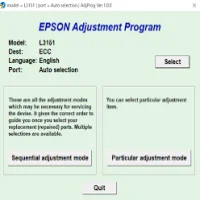
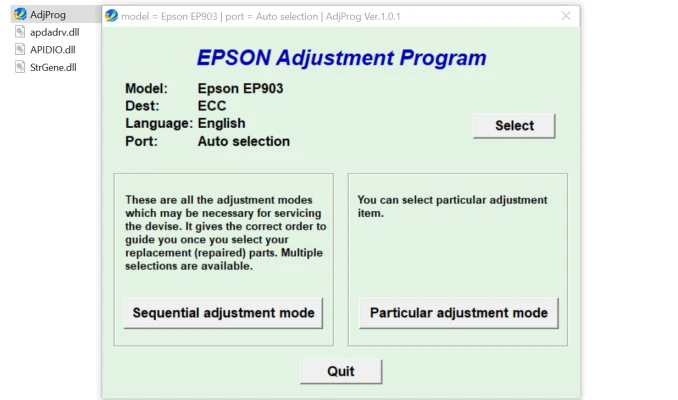
- Open the program from your computer.
- Choose the correct printer model (Epson EP-903F) from the list.
Select the Required Adjustment Function:
- Based on the issue you're facing, select the appropriate function. For example, if you are dealing with ink pad overflow, choose the reset waste ink pad option.
- Click “Execute” to begin the adjustment.
Follow On-Screen Instructions:
- The program will guide you through the process, whether it’s for head cleaning, alignment, or resetting the printer.
Check Printer Performance:
- After performing the necessary adjustments, print a test page to check if the issue has been resolved.
Important Considerations
Risks: While the Epson EP-903F Adjustment Program can fix many issues, improper use of the software can lead to unwanted results, like voiding your printer’s warranty or causing damage to internal components. It is crucial to follow the instructions carefully.
Legal Aspects: Since this adjustment program is not officially provided for public download, using third-party sources may come with risks such as downloading malware. It is essential to use trustworthy websites or ask Epson directly for the tool.
Maintenance: Even after using the program, regular maintenance, including print head cleaning and proper paper handling, is essential to ensure long-term printer health.
Conclusion
The Epson EP-903F Adjustment Program is an invaluable tool for resolving many common printer problems, helping users extend the life and performance of their printers. By utilizing its features, such as resetting ink pad counters, aligning the print head, and addressing paper feed issues, users can save money on repairs and ensure that their printer continues to deliver high-quality prints. However, it’s crucial to exercise caution when using the software and ensure that you follow all instructions to avoid damaging the printer or voiding its warranty.
Rate the App
User Reviews


Popular Apps