

Latest Version
Download NowMore About Epson Stylus C110 Adjustment Program
Epson Stylus C110 Adjustment Program: A Comprehensive Guide
The Epson Stylus C110 is a well-known inkjet printer that offers reliable performance for home and small office use. However, like any other printer, it requires periodic maintenance and adjustments to keep it functioning at its best. This is where the Epson Stylus C110 Adjustment Program comes into play. The program is a software tool designed to help users reset and adjust various printer settings, troubleshoot issues, and ensure the printer continues to deliver high-quality prints.
In this article, we'll delve into what the Epson Stylus C110 Adjustment Program is, why it's useful, and how you can use it to optimize the performance of your printer.
What is the Epson Stylus C110 Adjustment Program?
The Epson Stylus C110 Adjustment Program is a utility designed to help users resolve common printer problems and perform various maintenance tasks. It allows you to reset the printer's internal counter, perform head cleaning, align the printhead, and reset the ink pad counter. These functions are essential for maintaining the printer’s longevity and ensuring optimal print quality.
The adjustment program can also be used to fix errors that may occur when the printer's waste ink pads become saturated or when the printer stops printing due to a software or hardware malfunction. By using the program, users can restore the printer to its factory settings, eliminating the need for costly repairs or replacements.
Key Features of the Epson Stylus C110 Adjustment Program
-
Ink Pad Reset: Over time, the ink pads inside the printer absorb excess ink during the printing process. When these pads become full, the printer may display an error message or stop functioning. The Adjustment Program allows users to reset the ink pad counter, enabling continued use of the printer.
-
Head Cleaning: Clogged printheads can cause faded or uneven printing. The program includes a head cleaning feature that helps remove ink buildup and restore the print quality.
-
Print Head Alignment: Misaligned printheads can result in distorted or blurry prints. The Adjustment Program can assist in aligning the printheads to ensure that text and images are printed clearly.
-
Resetting the Printer's Counter: The adjustment program can reset the internal counters for various printer functions, including the page count and ink usage. This can be helpful for troubleshooting certain errors or preparing the printer for a new set of maintenance tasks.
-
Firmware Updates: Some versions of the Adjustment Program allow users to update the printer’s firmware to ensure compatibility with the latest software or improve the performance of the device.
How to Use the Epson Stylus C110 Adjustment Program
Using the Epson Stylus C110 Adjustment Program is relatively simple, but it requires a few steps to ensure everything is done correctly.
Step 1: Download and Install the Adjustment Program
The first step is to download the Epson Stylus C110 Adjustment Program from a trusted source. Be cautious when downloading software from third-party websites, as some sites may host malware or outdated versions of the program. Once downloaded, follow the installation instructions to set up the program on your computer.
Step 2: Connect the Printer to Your Computer
Make sure your Epson Stylus C110 is connected to the computer via USB or Wi-Fi, depending on your printer’s configuration. Ensure that the printer is powered on and ready for use.
Step 3: Launch the Adjustment Program
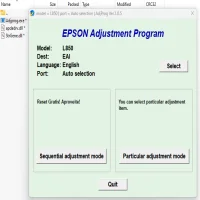
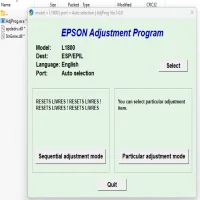
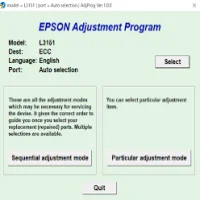
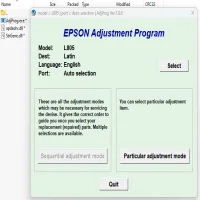
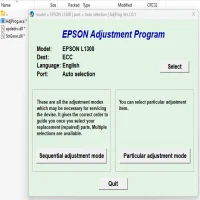
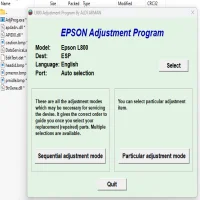
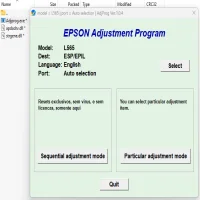
After installation, open the Epson Stylus C110 Adjustment Program. The interface may look complex, but it’s designed to be user-friendly. Choose the maintenance option you want to perform from the list of available tools, such as "Ink Pad Reset" or "Print Head Cleaning."
Step 4: Follow the On-Screen Instructions
Each maintenance task comes with a set of instructions on how to proceed. Follow these instructions carefully to avoid any errors. For example, when resetting the ink pad counter, the program will prompt you to press specific buttons on the printer. Be sure to follow these steps to complete the task successfully.
Step 5: Test the Printer
Once the adjustment task is complete, run a test print to check if the issue has been resolved. If the print quality has improved or the error message is gone, the process was successful.
Important Considerations
-
Backup Your Data: Before performing any reset or adjustment task, it’s a good idea to back up any important data related to your printer, such as custom settings or configuration profiles.
-
Use Caution: The Epson Stylus C110 Adjustment Program is a powerful tool, but improper use may cause further issues. Always follow the provided instructions carefully and avoid making unnecessary adjustments unless you are confident in what you’re doing.
-
Legal Concerns: In some regions, the use of adjustment programs might be subject to legal restrictions, as they can potentially void the printer’s warranty. Make sure to check the local laws and Epson’s warranty policy before using the program.
-
Updates and Maintenance: Ensure that the program is updated regularly to maintain compatibility with your printer’s software and firmware.
Conclusion
The Epson Stylus C110 Adjustment Program is a valuable tool for printer owners looking to maintain and repair their devices without resorting to expensive service calls. By using the program to perform regular maintenance tasks, you can extend the life of your printer and keep it running smoothly. However, it’s important to use the program cautiously and follow all instructions carefully to avoid causing any unintended damage.
If you experience any issues that you cannot resolve with the adjustment program, it may be worth contacting Epson’s support for further assistance.
Rate the App
User Reviews


Popular Apps