

Latest Version
Download NowMore About Epson Stylus NX220 Adjustment Program
Epson Stylus NX220 Adjustment Program: A Comprehensive Guide
The Epson Stylus NX220 is a versatile all-in-one inkjet printer that offers high-quality printing, scanning, and copying functions. While it serves a variety of home and small office needs efficiently, like any printer, it may occasionally encounter issues that affect its performance. When this happens, the Epson Stylus NX220 Adjustment Program can help restore the printer to its optimal functionality. This article provides an in-depth overview of the Epson Stylus NX220 Adjustment Program, its purpose, and how to use it effectively.
What is the Epson Stylus NX220 Adjustment Program?
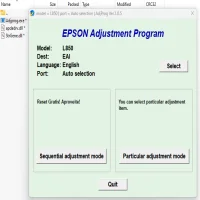
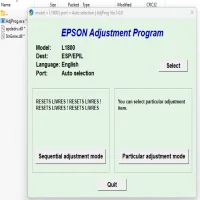
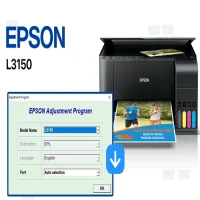
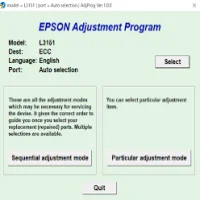
The Epson Stylus NX220 Adjustment Program is a specialized tool designed to reset and calibrate certain printer functions. It is primarily used for maintenance, fixing common issues, and ensuring the printer runs smoothly. This software allows users to perform a variety of tasks that can be essential for troubleshooting. It includes resetting the ink counter, clearing waste ink, and solving print quality issues like incorrect alignment or clogged printheads.
Why Should You Use the Epson Stylus NX220 Adjustment Program?
There are several reasons you might want to use the Adjustment Program for your Epson Stylus NX220. Some of the most common reasons include:
-
Ink Waste Reset: Over time, as your printer performs routine maintenance tasks (like cleaning the printhead), it accumulates waste ink in a dedicated reservoir. When this reservoir is full, the printer may stop functioning, and the waste ink needs to be reset to resume printing.
-
Printhead Issues: If your prints are showing poor quality, streaks, or faded areas, the printheads may need to be adjusted. The Adjustment Program can reset the printhead settings, ensuring better quality prints.
-
Resetting the Ink Counter: When the ink cartridges are replaced, the printer may not recognize the new ink levels. The Adjustment Program can reset the ink counter, helping the printer detect the correct ink levels.
-
Clearing Errors: Certain error codes related to the printer’s waste ink or maintenance functions can be resolved by using this program.
How to Download and Install the Epson Stylus NX220 Adjustment Program
The Epson Stylus NX220 Adjustment Program is not typically available through official channels like the Epson website. It is considered a specialized utility and might be found on third-party websites. While downloading the program, it’s essential to ensure that you’re getting the software from a reputable source to avoid any malware or viruses. Follow these steps to get started:
-
Download the Program:
- Search for "Epson Stylus NX220 Adjustment Program" on a trusted website or forum.
- Download the program file to your computer. Ensure that it is compatible with your operating system.
-
Install the Software:
- Extract the downloaded file if it’s in a compressed format.
- Run the installer and follow the on-screen prompts to install the software.
-
Connect the Printer:
- Connect your Epson Stylus NX220 printer to the computer via USB or wireless connection, depending on your setup.
Using the Epson Stylus NX220 Adjustment Program
Once the program is installed, it’s time to use it to solve any issues with your printer. The following steps outline how to use the Adjustment Program to reset functions and resolve errors:
-
Launch the Program:
- Open the Epson Stylus NX220 Adjustment Program from your desktop or start menu.
-
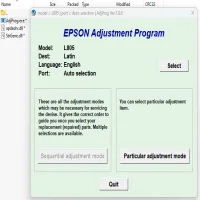
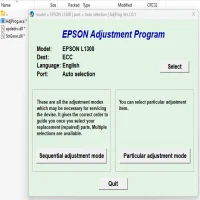
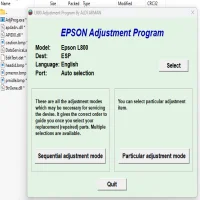
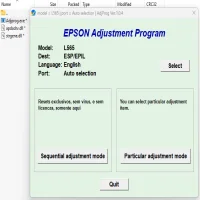
Select Your Printer:
- The program will prompt you to select the model of your printer. Choose "Epson Stylus NX220" from the list.
-
Choose the Adjustment Option:
- The program offers a variety of adjustment options, such as:
- Waste Ink Pad Reset: This clears the waste ink error and resets the ink pad counter.
- Printhead Cleaning: Performs a thorough cleaning of the printhead to restore print quality.
- Ink Counter Reset: Resets the ink usage counter after replacing cartridges.
- Head Alignment: Ensures proper alignment of the printhead for better printing results.
-
Run the Adjustment:
- Select the adjustment option you need, and click "Start" or "Execute." The program will carry out the necessary steps to reset or recalibrate your printer.
-
Restart the Printer:
- After completing the adjustment process, turn off the printer, wait for a few seconds, and then power it back on. This ensures that the changes take effect.
Troubleshooting Common Issues
-
Error Codes Not Clearing: If the error codes persist after using the program, double-check that you’ve selected the right adjustment option. You might need to repeat the reset process.
-
Incomplete Installation: If the program doesn’t run properly after installation, ensure that you’ve followed the correct installation steps and that your system meets the program’s requirements.
-
Compatibility Issues: The Epson Stylus NX220 Adjustment Program might not be compatible with all versions of Windows or macOS. In case of issues, try using compatibility mode or seek out a version suited to your operating system.
Final Thoughts
The Epson Stylus NX220 Adjustment Program is a valuable tool for users who want to keep their printer in good condition without professional assistance. It can help resolve a variety of common issues related to ink waste, printhead alignment, and ink counter resets. By using this program, you can extend the lifespan of your Epson printer and enjoy high-quality prints for years to come. However, always be cautious when downloading third-party software and ensure you’re getting it from a trusted source to avoid any potential security risks.
Rate the App
User Reviews


Popular Apps