

Latest Version
More About Epson Expression Home XP-100 Resetter
Epson Expression Home XP-100 Resetter: A Comprehensive Guide
The Epson Expression Home XP-100 is a popular all-in-one printer that delivers high-quality printing, scanning, and copying for home users. Over time, however, your printer may experience certain issues such as ink waste pad errors or the need for a reset due to a variety of reasons. In these situations, a printer reset becomes essential to restore the functionality of your device.
This article provides an in-depth look at how to reset your Epson Expression Home XP-100 printer. The resetting process can help resolve various problems, such as error messages, malfunctioning print jobs, or connectivity issues. It is important to note that resetting your printer should be done with caution to avoid further damage.
Common Issues That Require Resetting
- Waste Ink Pad Error: One of the most common problems is when the waste ink pads become full, triggering an error message on the printer.
- Printer Not Responding: If the printer is not responding to print commands, a reset can help restore its functionality.
- Ink Cartridge Problems: Sometimes, the printer may fail to recognize ink cartridges or display errors related to them.
- Network Issues: Resetting the printer can often resolve Wi-Fi connectivity issues, ensuring your device is properly connected to your home network.
How to Perform a Soft Reset
A soft reset can help fix minor issues without losing any printer settings. Here’s how to perform a soft reset on the Epson Expression Home XP-100:
- Turn off the Printer: Press the power button to turn off the printer.
- Unplug the Power Cable: Disconnect the power cord from both the printer and the power outlet.
- Wait for 5–10 Minutes: Allow the printer to rest for a few minutes. This gives it time to discharge any residual power.
- Plug the Printer Back In: Reconnect the power cable and turn the printer back on.
This method can often resolve minor issues and restore your printer to working order.
How to Perform a Hard Reset Using a Resetter Tool
If the soft reset doesn’t work, or you’re dealing with a more complex error, you may need to perform a hard reset using a software tool specifically designed for the Epson Expression Home XP-100. This process involves using an Epson Resetter, a utility that resets the internal counter of the printer. Here's how to do it:
Step 1: Download the Epson Resetter Tool
You can find various reset tools online, but make sure you download the Epson Expression Home XP-100 Resetter from a trusted source to avoid malware or corrupted files.
Step 2: Install the Software
Once downloaded, install the software on your computer. Be sure to follow all installation instructions provided with the tool.
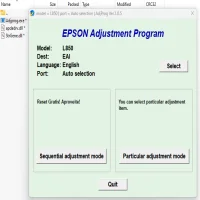
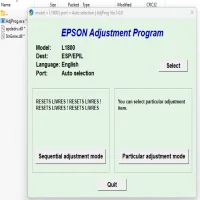
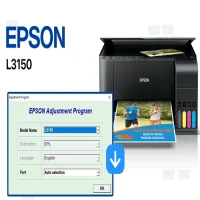
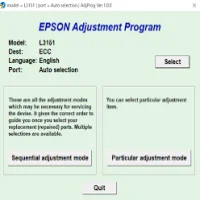
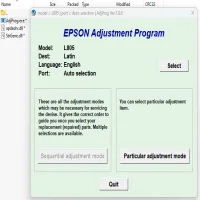
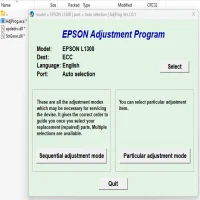
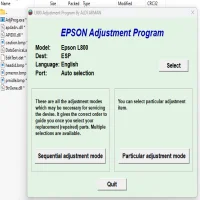
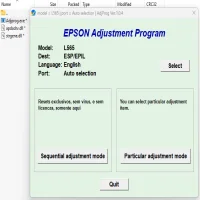
Step 3: Run the Resetter Program
- Open the Epson Resetter tool.
- Choose the "XP-100" model from the list of available printers.
- Click on the "Reset Waste Ink Pad Counter" option, which is the most common function for resolving the error associated with waste ink pads.
Step 4: Follow On-Screen Instructions
The program will guide you through the reset process. Once it is complete, restart the printer.
Step 5: Test the Printer
After performing the reset, run a test print to ensure everything is functioning correctly.
Important Notes and Warnings
- Backup Settings: Before resetting your printer, make sure you back up any important settings (such as Wi-Fi configuration or specific printer preferences), as a hard reset may erase all stored data.
- Waste Ink Pad: A full waste ink pad indicates that your printer has accumulated ink residue, and it may require replacement after many resets. If you repeatedly encounter this error, consider having the waste ink pads replaced by a professional.
- Official Support: If the reset tool does not work or if the error persists, you may need to contact Epson's customer support team for further assistance.
Conclusion
The Epson Expression Home XP-100 is a reliable home printer that can face issues over time, requiring a reset to restore its functionality. By following the steps outlined in this guide, you can efficiently reset your printer and resolve common problems such as waste ink pad errors, printer unresponsiveness, or connectivity issues. Whether you perform a soft reset or utilize a dedicated Epson Resetter tool, understanding the reset process is essential for maintaining your printer’s optimal performance.
Rate the App
User Reviews


Popular Apps