

Latest Version
More About Epson Expression Home XP-30 Resetter
Epson Expression Home XP-30 Resetter: A Comprehensive Guide
The Epson Expression Home XP-30 is a compact and affordable inkjet printer, well-suited for everyday printing needs, such as home and small office tasks. However, like many printers, it can experience various issues over time, including print errors, clogged print heads, or the dreaded "waste ink pad" error. Fortunately, for users who want to reset their printer and restore its functionality, an Epson Expression Home XP-30 Resetter tool can be a valuable solution.
What is an Epson Expression Home XP-30 Resetter?
The Epson Expression Home XP-30 Resetter is a software utility designed to reset your printer's internal memory. It can help resolve a variety of errors, including the "waste ink pad full" or "end of service life" message that often appears after extensive use. These errors occur when the printer's ink waste pads fill up, and the printer thinks it has reached the end of its useful life. While this is often a precautionary measure, it can be frustrating when you're in need of a reset.
By using a resetter tool, you can clear the error and continue printing without needing to replace the waste pads or send the printer for costly repairs.
How to Use an Epson Expression Home XP-30 Resetter
Before proceeding with the reset process, it is important to keep in mind that this process should only be done by experienced users, as it involves modifying the internal settings of the printer. Here's a step-by-step guide on how to use the Epson Expression Home XP-30 Resetter tool:
Step 1: Download the Resetter Tool
The first step is to download the correct resetter tool for your Epson Expression Home XP-30. Various websites offer free and paid versions of the software. Make sure to choose a trusted source to avoid malicious software.
Step 2: Install the Software
Once the resetter tool has been downloaded, run the setup file and follow the installation instructions. You may need to disable any antivirus software temporarily, as it could block the installation of third-party programs.
Step 3: Connect the Printer
Ensure that the Epson Expression Home XP-30 is connected to your computer and powered on. If you're using a USB connection, make sure it’s securely plugged in.
Step 4: Run the Resetter Tool
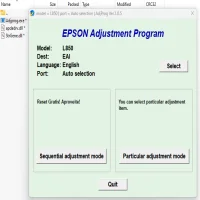
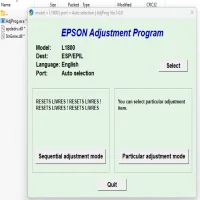
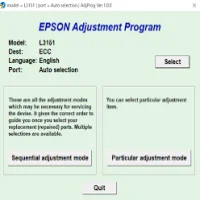
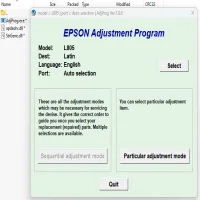
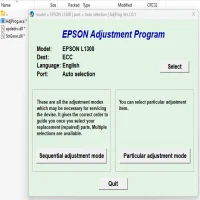
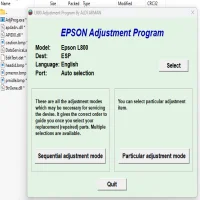
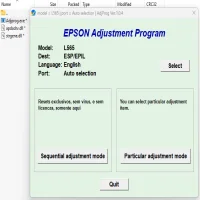
Open the resetter program and wait for it to detect the printer. Once the printer is identified, you should see an interface with several options. Select the "Waste Ink Pad Reset" or similar option, depending on the software you’re using.
Step 5: Reset the Printer
Follow the on-screen instructions to reset the printer. The software will begin the reset process, and it may take a few minutes to complete. Do not disconnect the printer or turn it off during the reset.
Step 6: Test the Printer
After the reset is complete, restart the printer and check if the error message has disappeared. You can also try printing a test page to ensure that everything is working correctly.
Why Use a Resetter?
Here are some of the main reasons why people opt for an Epson Expression Home XP-30 Resetter:
-
Cost-Effective: Rather than spending money on new parts or repairs, a resetter tool can solve many common printer issues without the need for a technician.
-
Convenience: You can reset your printer at home, avoiding the hassle of sending it away for repairs or waiting for parts to arrive.
-
Longer Printer Life: By clearing errors that prevent your printer from working, you can extend the printer's life and make the most of your initial investment.
Important Considerations
-
Risk of Damage: If not used properly, the resetter tool could cause damage to your printer, so it's important to follow instructions carefully.
-
Software Legality: Using third-party resetter software might void your warranty or violate terms of service. Always check the manufacturer’s guidelines before proceeding.
-
Waste Ink Pads: Resetting the printer does not physically remove or replace the waste ink pads. If the pads are full, you may need to replace them eventually to prevent ink spillage.
Conclusion
The Epson Expression Home XP-30 Resetter tool is an essential resource for users who need to reset their printer due to error messages like the "waste ink pad" issue. By following the proper steps, you can restore your printer's functionality and avoid unnecessary repairs or replacements. However, always use caution and ensure you are using reliable software to prevent any unintended damage to your printer.
Rate the App
User Reviews


Popular Apps