

Latest Version
More About Epson Expression Home XP-103 Resetter
Epson Expression Home XP-103 Resetter: A Guide to Resetting Your Printer
The Epson Expression Home XP-103 is a popular and affordable all-in-one inkjet printer designed for home use. Despite its reliability, users may encounter issues such as the "ink pad is at the end of its service life" error, leading to a need for a reset. This article will guide you through the process of resetting your Epson Expression Home XP-103 printer using a resetter tool.
What is a Printer Resetter?
A printer resetter is a tool used to restore a printer's internal settings to their factory defaults. This process can clear errors, including those related to the ink pads, waste ink counters, and other critical functions. In the case of the Epson Expression Home XP-103, the resetter is particularly useful when the printer displays messages indicating that the ink pads are full or nearing their maximum capacity.
Why You Might Need a Resetter
There are several reasons why you might need to reset your Epson XP-103 printer:
- Ink Pad Error: The most common issue is the printer warning you that the ink pads are full. This happens after a certain amount of printing, as the printer collects excess ink during the cleaning process.
- Waste Ink Counter Reset: The printer's internal counter keeps track of how much ink has been absorbed by the pads. Once the limit is reached, the printer stops working until the counter is reset.
- Other Errors: Occasionally, the printer may display errors related to its internal mechanisms, which a resetter can fix.
How to Use the Epson Expression Home XP-103 Resetter
Before proceeding with the reset, ensure that your printer is turned on and connected to your computer.
Step 1: Download the Resetter Software
- Find the Resetter: Search for a reputable website offering the Epson XP-103 resetter tool. Be cautious when downloading software from the internet—make sure it’s from a trusted source to avoid malware.
- Download the Software: Once you find a reliable resetter tool, download it onto your computer. It will typically be a .exe file for Windows or a .dmg file for macOS.
Step 2: Install the Software
- Run the Installer: After downloading the software, double-click the file to start the installation process.
- Follow On-Screen Instructions: Complete the installation by following the on-screen instructions. The process should only take a few minutes.
Step 3: Run the Resetter Tool
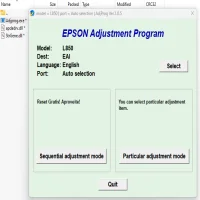
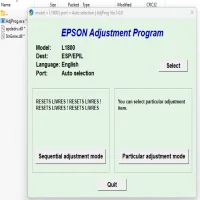
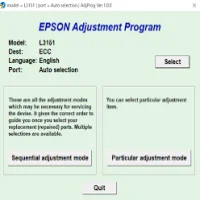
- Launch the Resetter: Once the installation is complete, open the resetter tool on your computer.
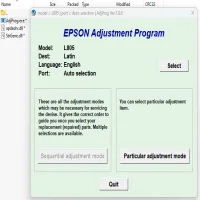
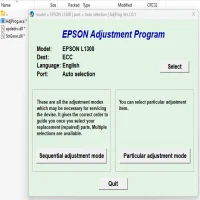
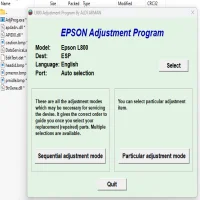
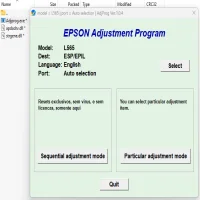
- Select Printer Model: The software will prompt you to select the printer model. Choose the Epson Expression Home XP-103 from the list.
- Reset Waste Ink Counter: The software should have an option to reset the waste ink counter. Click on this option, and follow the prompts to reset the counter.
- Wait for Confirmation: After the reset is complete, the tool will inform you that the process was successful. The printer should now be ready to use without the ink pad error.
Step 4: Test the Printer
Once the reset process is complete, test your Epson Expression Home XP-103 printer by printing a document. If the reset was successful, you should no longer encounter the ink pad error, and the printer will resume normal operation.
Precautions When Using a Resetter Tool
- Backup Settings: Before using the resetter, make sure to backup any important data or printer settings. Resetting may revert the printer to its factory defaults, including any custom settings you’ve configured.
- Use Only When Necessary: Resetting the waste ink counter should only be done when absolutely necessary, as overuse of this function can result in damage to the printer’s ink pads, which are integral for absorbing excess ink during printing.
Conclusion
Using an Epson Expression Home XP-103 resetter tool is an effective way to resolve waste ink pad errors and extend the life of your printer. While the reset process is relatively simple, it’s important to ensure that you’re using the correct software and that you follow the instructions carefully to avoid further issues. Regular maintenance and proper care of your printer will help keep it functioning optimally for years to come.
Rate the App
User Reviews


Popular Apps