

Latest Version
More About Epson Expression Home XP-200 Adjustment Program
Epson Expression Home XP-200 Adjustment Program: A Comprehensive Guide
The Epson Expression Home XP-200 is a versatile and affordable all-in-one inkjet printer, ideal for home users who require printing, scanning, and copying capabilities in a compact design. However, like many printers, the XP-200 may eventually encounter certain issues over time, such as ink waste accumulation or a malfunction in the printhead. In such cases, the Epson Expression Home XP-200 Adjustment Program can serve as an essential tool to resolve these issues.
This article will guide you through what the Epson Expression Home XP-200 Adjustment Program is, how it works, and how you can use it to maintain the performance of your printer.
What is the Epson Expression Home XP-200 Adjustment Program?
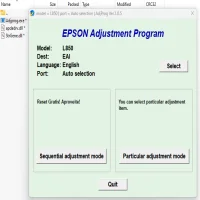
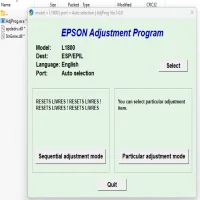
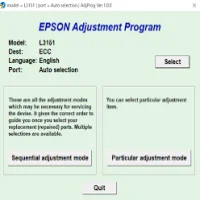
The Epson Adjustment Program is a utility software designed to help users reset or calibrate their printers. It is primarily used to address issues like ink absorber pad reset, printhead alignment, and cleaning of blocked nozzles. While this tool is mainly aimed at professionals or service centers, it can be incredibly useful for DIY maintenance for users who are confident in using such tools.
Key Features of the Epson Expression Home XP-200 Adjustment Program:
-
Ink Absorber Reset: One of the main functions of the adjustment program is to reset the ink waste absorber, a component that collects excess ink during normal printer use. Over time, this pad can fill up and trigger warning messages, halting further printing. The adjustment program helps clear this issue, allowing you to continue printing without unnecessary interruptions.
-
Head Cleaning and Nozzle Checks: If your printer starts producing low-quality prints, with streaks or missing colors, the adjustment program can run cleaning routines that will clear clogged printheads. This feature ensures consistent and high-quality printing results.
-
Printhead Alignment: Misalignment of the printhead can lead to blurry or distorted images and text. The program can realign the printhead to ensure sharper, more accurate printouts.
-
Resetting Printer Settings: If your printer encounters errors or if you've modified certain settings incorrectly, the adjustment program can reset the printer to its factory settings, fixing problems caused by configuration issues.
-
Waste Ink Pad Diagnostics: As printers age, the ink waste pads inside the device can become full, signaling that it's time to replace or reset them. The adjustment program provides a diagnostic tool to monitor ink pad status and take corrective actions.
How to Use the Epson Expression Home XP-200 Adjustment Program
Step 1: Download the Epson Adjustment Program
The program is not typically available for free on the official Epson website, but it can be found on third-party websites that provide printer maintenance utilities. Make sure to download the program from a reliable source to avoid potential malware.
Step 2: Install the Program
Once the program is downloaded, you will need to install it on your computer. Follow the on-screen instructions during the installation process. In some cases, you may need to extract the files from a ZIP archive before installation.
Step 3: Connect the Printer to the Computer
Ensure that the Epson XP-200 printer is connected to your computer via USB cable or wireless network, depending on your setup. The adjustment program will only work if your printer is properly connected.
Step 4: Run the Program
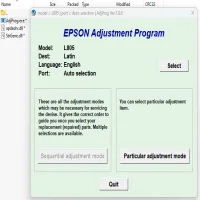
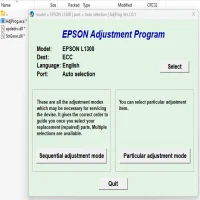
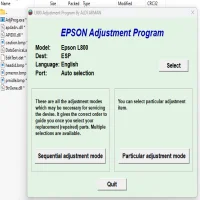
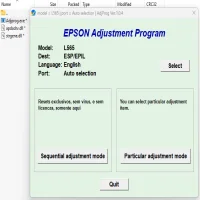
Open the adjustment program and select the Epson Expression Home XP-200 from the list of connected devices. From the menu, you can select various options, such as:
- Ink pad reset
- Printhead cleaning
- Nozzle check
- Printhead alignment
Each option will have specific instructions on how to proceed. Follow the prompts to complete the required maintenance.
Step 5: Follow the On-Screen Instructions
The program will guide you step by step through the processes. For example, when resetting the ink pads, the software will tell you when to press the reset button on the printer. After performing the tasks, the printer will usually display a confirmation message.
Step 6: Test the Printer
Once the adjustments are complete, perform a test print or alignment to check if the issues have been resolved. If the printer is still malfunctioning, you may need to repeat certain steps or perform additional maintenance.
Is It Safe to Use the Epson Expression Home XP-200 Adjustment Program?
While the Epson Adjustment Program is effective, it is important to note that using third-party tools comes with some risks. If not used properly, these tools can cause unintended changes to the printer’s configuration or even damage the hardware.
To ensure safety:
- Always back up important printer settings or configurations.
- Make sure to use reputable sources for downloading the adjustment program.
- Follow all instructions carefully to avoid any complications.
When to Use the Adjustment Program
The Epson Expression Home XP-200 Adjustment Program is not a routine maintenance tool, but rather a troubleshooting utility that should be used when specific problems arise. Some common situations where you may need to use it include:
- Printer errors related to ink waste pads.
- Poor print quality due to clogged nozzles or misaligned printheads.
- Printer stalls due to excessive ink waste or other internal issues.
Conclusion
The Epson Expression Home XP-200 Adjustment Program is a powerful utility that can help resolve many common printer problems without the need for professional servicing. Whether you're dealing with ink waste accumulation or printhead misalignment, this tool offers a practical and cost-effective solution for extending the life of your printer. However, it’s important to proceed with caution and ensure that you follow all instructions carefully to prevent further issues.
By maintaining your printer regularly with the adjustment program, you can ensure that the Epson XP-200 continues to deliver high-quality prints for years to come.
Rate the App
User Reviews


Popular Apps