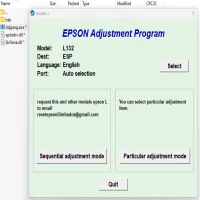
Latest Version
Download NowMore About Epson L132 Adjustment Program ( Resetter )
Epson L132 Adjustment Program (Resetter): A Comprehensive Guide
The Epson L132 printer is a reliable, cost-efficient inkjet printer that delivers high-quality prints, making it a popular choice for home and office use. However, like all printers, the Epson L132 may encounter certain issues over time. One common issue is the accumulation of waste ink, which can trigger the printer's waste ink counter to hit its limit. When this happens, you may face problems like error messages or the printer stopping its operation entirely. In such cases, the Epson L132 Adjustment Program (also referred to as the Resetter) is a crucial tool that can help you reset the printer’s waste ink counter and restore normal functionality.
What is the Epson L132 Adjustment Program?
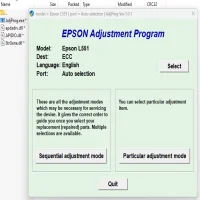
The Epson L132 Adjustment Program is a software utility designed to reset or adjust the internal counters of Epson printers. Specifically, it helps to reset the waste ink counter, which tracks the ink that has been discarded during printhead cleaning or other maintenance procedures. When this counter reaches its limit, the printer may stop functioning, displaying an error message such as "Waste ink tank is full."
The Adjustment Program can also be used to perform other maintenance tasks, such as resetting the printer’s ink level, clearing printhead errors, and adjusting the printer’s settings. It's especially useful for situations where the printer is malfunctioning due to waste ink overflow, which often causes the printer to display error codes that prevent further use.
Why You Need the Epson L132 Adjustment Program
While the Epson L132 is a durable printer, excessive printing without proper maintenance can lead to the accumulation of waste ink, filling the waste ink tank. Once the waste ink counter exceeds its threshold, the printer halts to prevent any potential damage. The Epson L132 Adjustment Program allows users to reset this counter, avoiding the need for costly repairs or a replacement printer.
Here are some common situations where using the Epson L132 Adjustment Program is essential:
-
Waste Ink Tank Full Error: If the waste ink tank becomes full, the printer may stop functioning. Resetting the waste ink counter will solve the issue and allow the printer to continue working.
-
Print Quality Issues: Over time, printheads may become clogged due to ink buildup. The Adjustment Program can help clean the printheads and improve print quality.
-
Ink Level Monitoring: The program can reset ink level readings, which can be useful when replacing ink cartridges or troubleshooting ink-related issues.
-
General Maintenance: Regular use of the Adjustment Program can help keep the printer in optimal working condition by performing necessary maintenance tasks such as printhead cleaning and ink system adjustments.
How to Use the Epson L132 Adjustment Program
Before using the Epson L132 Adjustment Program, ensure that your printer is connected to your computer and turned on. You may need to install the necessary drivers for the printer if you haven't already. Once that’s done, follow these steps:
-
Download the Adjustment Program: Search for a reliable source to download the Epson L132 Adjustment Program (Reseter). Be cautious of unofficial websites and ensure that the software is compatible with your printer model.
-
Extract the Files: After downloading the program, extract the contents of the ZIP file to a folder on your computer.
-
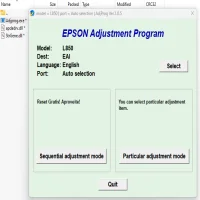
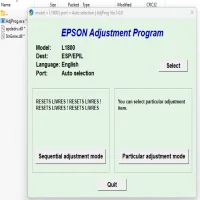
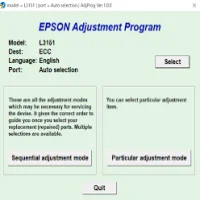
Run the Program: Open the folder and double-click the executable file (usually named "AdjProg.exe" or similar) to launch the software.
-
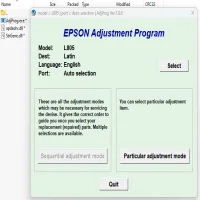
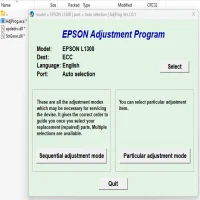
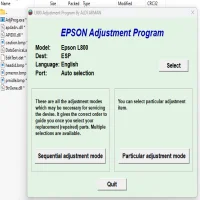
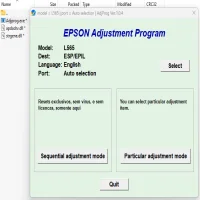
Select Your Printer Model: The program will prompt you to select your printer model. Choose "Epson L132" from the available options.
-
Choose the Reset Option: Once the program detects your printer, navigate to the option for resetting the waste ink counter. This is often labeled as “Waste Ink Reset” or “Counter Reset.”
-
Start the Reset: Click the button to begin the reset process. Follow any on-screen instructions provided by the software. The program will communicate with your printer and reset the waste ink counter.
-
Complete the Process: Once the reset is complete, restart your printer and check to see if the error message has been cleared. Your printer should now be operational again.
Important Considerations
While the Epson L132 Adjustment Program is a helpful tool, there are a few things you should keep in mind:
-
Legal Issues: Epson provides official software and services for printer maintenance, and using third-party resetters or adjustment programs may void your warranty. Always check with Epson for guidance before proceeding.
-
Waste Ink Tank: The Adjustment Program resets the counter, but it doesn’t physically empty the waste ink tank. If the waste ink tank is truly full, you may need to clean or replace it. Continuing to use the printer without addressing a full waste ink tank can result in ink leakage or other issues.
-
Accuracy: Ensure that you are using the correct version of the Adjustment Program for your Epson L132 printer model. Using the wrong version can cause errors or malfunctions.
Conclusion
The Epson L132 Adjustment Program is a practical tool for users who experience waste ink overflow issues or other maintenance-related problems with their Epson printer. By resetting the waste ink counter, you can restore the printer to its full functionality and continue printing without interruptions. However, it’s important to use the program responsibly and ensure that any underlying hardware issues, like a full waste ink tank, are addressed to prevent further problems.
Remember, while the Adjustment Program can be a useful tool for home users, professional technicians should be consulted for more advanced issues that go beyond resetting internal counters.
Rate the App
User Reviews

Popular Apps