Latest Version
More About Epson L222 Adjustment Program ( Resetter )
Epson L222 Adjustment Program (Resetter): A Comprehensive Guide
The Epson L222 is a popular model in the Epson L-series of printers, known for its excellent print quality and cost-efficiency due to the integrated ink tank system. However, like all printers, it occasionally requires maintenance to ensure continued smooth performance. One of the essential tools for maintaining the Epson L222 printer is the Adjustment Program or Resetter.
What is the Epson L222 Adjustment Program (Resetter)?
The Epson L222 Adjustment Program, also known as the Resetter, is a software tool designed to help users perform maintenance tasks on their Epson L222 printer. These tasks often include resetting the printer’s internal counters, clearing error codes, and recalibrating specific settings to restore normal printing functionality.
When your Epson L222 reaches certain usage thresholds, such as a high print count or excessive ink waste, it triggers an error message or stops printing. This is often a result of the "waste ink pad" reaching its maximum capacity. The Adjustment Program can help clear these errors by resetting the printer’s internal counters and recalibrating the system.
Why is the Adjustment Program Important?
The Epson L222 Adjustment Program becomes crucial in the following situations:
-
Waste Ink Pad Error: Over time, the waste ink pad collects excess ink that is discarded during printing and cleaning cycles. When this pad reaches its limit, the printer may display an error message, preventing further printing. The Adjustment Program resets this counter, allowing the printer to resume normal operation.
-
Printer Performance Degradation: If your Epson L222 has been in use for a long time, it may begin to show signs of performance issues like poor print quality, slow printing, or error codes. The Adjustment Program can be used to recalibrate various settings and restore optimal performance.
-
Resetting Printer Settings: Sometimes, users may accidentally change certain settings or configurations, leading to printer malfunctions. The Resetter helps reset these settings to their factory defaults.
How Does the Epson L222 Adjustment Program Work?
The Epson L222 Adjustment Program functions by communicating directly with the printer’s firmware and internal system. It accesses the printer’s diagnostic modes, which allows it to perform various reset operations, such as:
-
Resetting the Waste Ink Pad Counter: As mentioned, the most common reason for using the Adjustment Program is to reset the waste ink pad counter. This counter tracks the ink absorbed by the pad during cleaning cycles. Once the pad reaches capacity, the printer will stop functioning until the counter is reset.
-
Cleaning and Maintenance Functions: The program provides options for cleaning the printer’s nozzles, head alignment, and overall maintenance tasks that are essential for preserving print quality.
-
Ink Counter Reset: The Adjustment Program can also reset the ink levels, ensuring that the printer displays accurate ink status on the screen.
How to Use the Epson L222 Adjustment Program
Using the Epson L222 Adjustment Program is relatively straightforward, but it does require careful attention. Below is a step-by-step guide to using the Adjustment Program:
-
Download the Adjustment Program: First, you’ll need to download the Epson L222 Adjustment Program from a reliable source. Be cautious, as downloading software from unauthorized websites can expose your system to malware.
-
Install the Software: After downloading the program, run the installation file. Follow the on-screen instructions to install the software on your computer.
-
Connect Your Printer: Make sure your Epson L222 printer is connected to your computer via USB or network connection. Power on the printer.
-
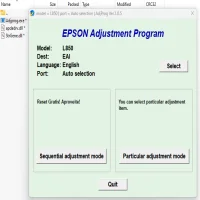
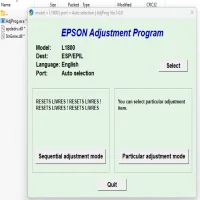
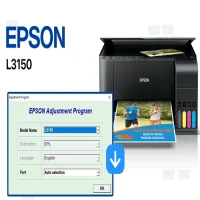
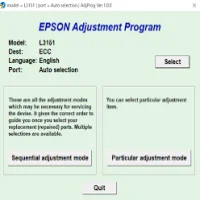
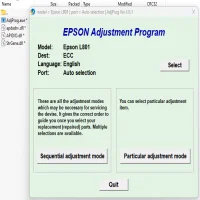
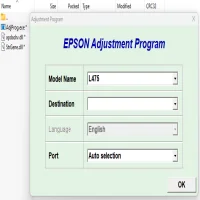
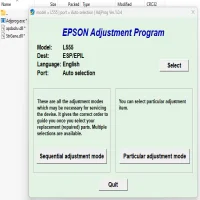
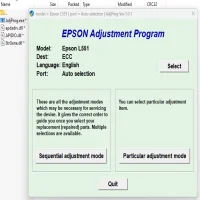
Run the Adjustment Program: Launch the Adjustment Program on your computer. The software will detect your connected printer.
-
Select the Desired Function: The program offers several functions, including resetting the waste ink pad counter, head cleaning, and ink level resetting. Choose the appropriate function for your needs.
-
Start the Reset Process: Once you've selected the function, click on the “Start” button to begin the reset process. The printer may make noises, such as running cleaning cycles, during the process. Be patient and do not interrupt the procedure.
-
Test the Printer: After the reset is complete, perform a test print to check if the issue has been resolved. If the printer is still showing errors, you may need to repeat the process or try a different function.
Precautions When Using the Epson L222 Adjustment Program
While the Epson L222 Adjustment Program is a powerful tool, there are a few important precautions you should consider:
-
Use with Caution: The Adjustment Program can affect the printer’s internal settings. If used incorrectly, it could lead to malfunctions or permanent damage. Always follow instructions carefully and use the software only when necessary.
-
Backup Printer Settings: If possible, create a backup of your printer settings before using the Adjustment Program. This will help you restore the original configuration if something goes wrong.
-
Waste Ink Pad Replacement: While the Adjustment Program resets the waste ink pad counter, it does not physically empty the waste ink pad. If the waste ink pad is full, it’s recommended to have it replaced by a professional to avoid ink leakage.
Conclusion
The Epson L222 Adjustment Program (Resetter) is an essential tool for maintaining your printer’s functionality, especially when dealing with common issues like waste ink pad errors or performance degradation. By following the steps carefully and using the program responsibly, you can extend the life of your Epson L222 and keep it working at peak performance. Just remember to always use this tool with caution and ensure that your printer is well-maintained for optimal results.
Rate the App
User Reviews

Popular Apps