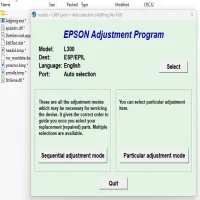
Latest Version
Download NowMore About Epson L300 Adjustment Program ( Resetter )
Epson L300 Adjustment Program (Resetter): A Comprehensive Guide
The Epson L300 is a popular inkjet printer, widely used in home and office environments due to its efficiency and affordable ink tank system. However, like all printers, it eventually encounters technical issues that require intervention. One such issue is the need to reset the printer's internal settings, especially after extensive use, ink pad saturation, or error messages. This is where the Epson L300 Adjustment Program (also known as a Resetter) comes into play. This software tool can help users reset the printer’s internal counters and restore it to optimal functionality. Here's a detailed guide on what it is, how it works, and how to use it.
What is the Epson L300 Adjustment Program (Resetter)?
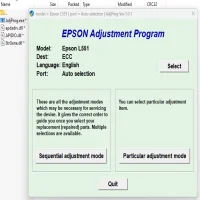
The Epson L300 Adjustment Program is a software tool designed to reset the printer’s internal data counters, including waste ink counters, print head data, and other internal settings. It is particularly useful when you encounter the “Service Required” error or when the printer stops printing due to the ink pad being full. This software allows users to perform maintenance functions, such as clearing error messages and resetting counters, without requiring professional service.
Why Do You Need the Epson L300 Adjustment Program?
The Epson L300 printer, like other Epson printers, is equipped with internal waste ink pads that collect excess ink during the printing process. Over time, these ink pads can become saturated, and when they reach their capacity, the printer displays an error message, such as "Service Required," or simply stops printing. This happens to prevent ink from leaking out and damaging the printer.
When the ink pad reaches its limit, the printer needs to be reset using the Epson L300 Adjustment Program. This reset clears the internal counters related to the ink pad's ink collection and enables the printer to function again. The software essentially "tells" the printer that the ink pad has been replaced or serviced, allowing you to continue printing.
How Does the Epson L300 Adjustment Program Work?
The Adjustment Program works by accessing the printer’s internal diagnostic settings. These settings include:
- Ink Pad Counters: These are the counters that monitor the amount of ink absorbed by the waste pads. When the pads are full, these counters are triggered to stop printing.
- Print Head Data: The program can also reset any issues related to the print head, which might occur after extended use.
- Waste Ink Counters: If the printer has accumulated excess ink, the Adjustment Program can reset the waste ink counters to reflect a new waste ink pad or an empty one.
When you use the Adjustment Program, it essentially bypasses the limits set by Epson's software, clearing the error and restoring normal operation. This is a temporary fix, but it is crucial for extending the life of your Epson L300 printer.
How to Use the Epson L300 Adjustment Program (Resetter)?
Before you proceed with using the Epson L300 Adjustment Program, ensure you have a few things in place:
- A working computer: The adjustment program runs on Windows, so you will need a computer running an appropriate version of Windows.
- The Epson L300 Adjustment Program: This software can be downloaded online (be sure to obtain it from a reputable source to avoid malware).
- A USB connection: The printer must be connected to the computer via USB for the program to communicate with it.
Here’s a step-by-step guide to using the program:
-
Download the Epson L300 Adjustment Program: Find a trusted source for the software and download it to your computer. The file will likely be in a zip format.
-
Extract the Files: Once the file is downloaded, right-click on it and select "Extract All" to unzip the contents into a folder.
-
Install the Software: Navigate to the folder where you extracted the files and look for the installer. Follow the on-screen instructions to install the software on your computer.
-
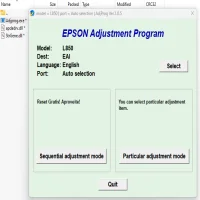
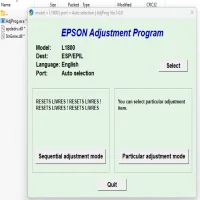
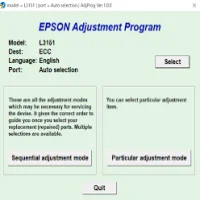
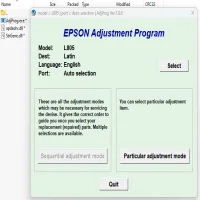
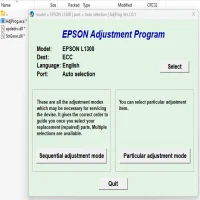
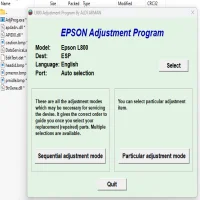
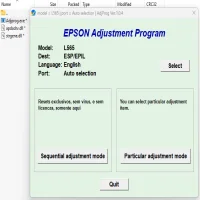
Launch the Adjustment Program: After installation, open the program. You may need to grant administrative privileges to run it.
-
Connect Your Printer: Ensure your Epson L300 printer is turned on and connected to your computer via USB. The program will detect your printer automatically.
-
Select the “Waste Ink Pad Counter”: In the software, select the "Waste Ink Pad Counter" option. This is where the reset functionality is located.
-
Perform the Reset: Follow the instructions on-screen to reset the counters. You may need to click on "Start" or "Reset" depending on the specific version of the program you're using.
-
Test the Printer: Once the reset is complete, test your printer by printing a test page or performing a cleaning cycle. This ensures that the reset was successful.
Caution: Important Considerations
- Backup your data: Always ensure that you’ve backed up your important files before using any software tool. The Adjustment Program is a powerful tool, and a wrong move might cause issues with your printer’s software.
- Ink Pad Replacement: The Adjustment Program resets the waste ink counter, but this does not replace the actual waste ink pads. It is advisable to replace the pads physically if you are using this tool for extended periods.
- Legality: Be aware that using third-party resetter programs might void your printer warranty. Always check with the manufacturer if you're concerned about this aspect.
Conclusion
The Epson L300 Adjustment Program is a handy tool for resolving error messages related to waste ink pad saturation and other internal counters. By following the instructions carefully, users can reset their printer's internal counters and continue using their device without having to send it for costly repairs. However, always consider replacing the waste ink pads to avoid any long-term damage to your printer. Regular maintenance and proper usage will ensure your Epson L300 printer continues to deliver quality prints for years to come.
Rate the App
User Reviews

Popular Apps