Latest Version
Download NowMore About Epson L301 Adjustment Program ( Resetter )
Epson L301 Adjustment Program (Resetter): A Comprehensive Guide
The Epson L301 is a popular inkjet printer known for its reliability and cost-effectiveness, especially for users who print high volumes of documents. However, like many other printers, it may encounter certain issues over time. A common problem is the ink waste pad counter overflow, which can prevent the printer from functioning properly. In such cases, users often turn to an Epson L301 Adjustment Program (Resetter) to resolve the issue and restore the printer's performance.
This article provides an in-depth look at the Epson L301 Adjustment Program, its importance, how it works, and the steps required to use it effectively.
What is the Epson L301 Adjustment Program?
The Epson L301 Adjustment Program (also known as a resetter) is a software tool designed to help users reset various parameters of their Epson printer. The most common issue it addresses is the ink pad counter, which keeps track of the amount of ink used by the printer. Over time, the printer may display an error message indicating that the waste ink pads are full, preventing further printing.
The adjustment program allows users to reset the ink waste pad counter, clearing the error and allowing the printer to resume normal operation. It also provides several other advanced features, such as printer head cleaning, EEPROM (Electrically Erasable Programmable Read-Only Memory) resetting, and other maintenance functions.
Why Do You Need the Epson L301 Adjustment Program?
The primary reason for using the Epson L301 Adjustment Program is to fix the ink pad counter error. The printer will stop working once the ink waste pads reach their predetermined capacity. While this is a protective measure to prevent ink spillage, it can be inconvenient if you’re not ready to replace the pads.
Using the Adjustment Program allows you to reset the ink pad counter without the need to replace the pads immediately. This is especially useful for users who want to extend the printer’s lifespan before opting for a hardware replacement.
How Does the Epson L301 Adjustment Program Work?
The Epson L301 Adjustment Program works by resetting the printer’s internal counters that track various components' status. These components include the ink waste pads, ink levels, and the printer’s overall performance. By resetting these counters, the printer is essentially “reset” to its factory settings, clearing any error codes and allowing the printer to function as if it’s brand new.
The program can be downloaded and installed on a computer, where it communicates directly with the printer via USB. Once connected, the software allows users to access various maintenance functions, including resetting the waste ink counter.
How to Use the Epson L301 Adjustment Program
Here’s a step-by-step guide to using the Epson L301 Adjustment Program:
Step 1: Download the Epson L301 Adjustment Program
The first step is to download the Epson L301 Adjustment Program from a reputable source. Be cautious, as downloading software from unreliable sites can introduce malware or other security risks.
Step 2: Install the Program
Once downloaded, follow the installation instructions provided by the source. The program is typically compatible with Windows operating systems, so make sure your system meets the requirements.
Step 3: Connect the Printer
Connect your Epson L301 printer to the computer via USB cable. Ensure the printer is powered on.
Step 4: Open the Adjustment Program
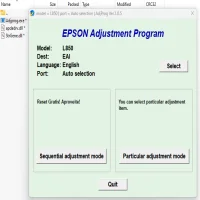
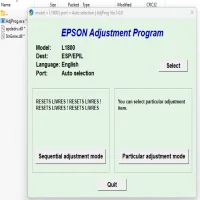
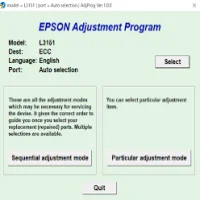
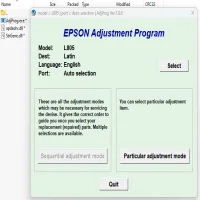
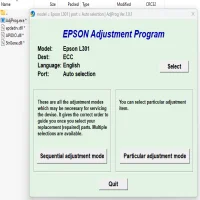
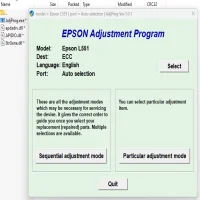
Launch the Epson L301 Adjustment Program on your computer. You should see a window with several options related to the printer’s maintenance.
Step 5: Select the Waste Ink Reset Option
Look for the “Waste Ink Pad Counter” option in the software. This is typically found in the “Main” menu. Select this option to proceed with the reset.
Step 6: Start the Reset Process
Click the “Start” button to begin the reset process. The program will take a few minutes to communicate with the printer and reset the waste ink counter. Once the reset is complete, you should see a confirmation message on your screen.
Step 7: Verify the Printer’s Functionality
After the reset, check the printer to ensure it is working properly. You may want to print a test page or perform other maintenance tasks, such as head cleaning, to confirm the printer is back to normal.
Important Notes
- Use with Caution: The Epson L301 Adjustment Program is a powerful tool, but it should be used carefully. Incorrect use can lead to further printer malfunctions or void the warranty.
- Waste Ink Pads: While the adjustment program resets the ink pad counter, it does not physically clean or replace the waste ink pads. Over time, these pads may still need to be replaced to ensure optimal printer performance.
- Legality and Warranty: Using third-party software like the Adjustment Program may void your printer’s warranty, so it's important to consider the implications before proceeding.
Conclusion
The Epson L301 Adjustment Program is an invaluable tool for users who encounter issues related to the ink waste pad counter or other maintenance functions. By allowing users to reset critical counters, it helps extend the printer’s life and avoid costly repairs. However, it's essential to use this tool carefully and responsibly, ensuring that you address both the software and hardware aspects of your printer's maintenance needs.
Rate the App
User Reviews

Popular Apps