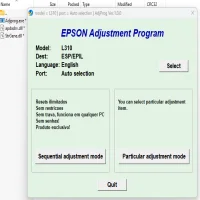
Latest Version
More About Epson L310 Adjustment Program ( Resetter )
Epson L310 Adjustment Program (Resetter): A Comprehensive Guide
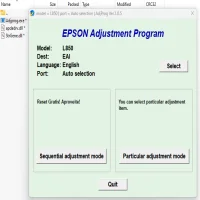
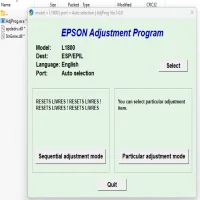
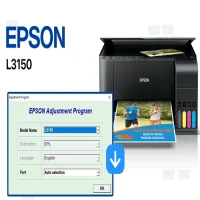
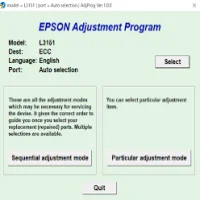
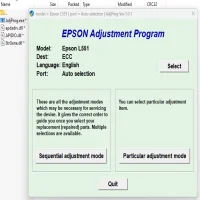
The Epson L310 is a popular ink tank printer known for its high-quality prints and efficient performance. Like many Epson printers, it comes with a built-in waste ink counter that tracks the amount of ink used during printing. Over time, this counter accumulates data and can lead to printer malfunctions if not reset. This is where the Epson L310 Adjustment Program (also referred to as a Resetter) comes into play. This software allows you to reset the printer’s internal counters, fix certain printer issues, and restore it to its original working condition.
Understanding the Epson L310 Waste Ink Counter
In printers like the Epson L310, waste ink accumulates in an internal absorber or pad. These absorbers are designed to collect excess ink during printing tasks such as cleaning and maintenance processes. The Epson printer has a counter that tracks the volume of ink absorbed by the pads, and once the limit is reached, the printer may stop functioning properly. The error message often displayed is “Ink Waste Pad is Full.”
If the waste ink counter reaches its threshold, the Epson printer will stop printing to prevent further ink overflow, which could cause potential damage to the internal components. This is where the Epson L310 Adjustment Program can help. It resets the waste ink counter, allowing the printer to resume normal functionality.
How to Use the Epson L310 Adjustment Program
To reset the waste ink counter, you need to use the Epson L310 Adjustment Program, which is designed specifically for Epson printers. Below is a step-by-step guide to using the software:
Step 1: Download and Install the Epson L310 Adjustment Program
-
Search for a reliable source that provides the Epson L310 Adjustment Program (Resetter). Be cautious when downloading software from the internet to avoid potential security risks.
-
Download the program and extract the zip file to your computer. The file will typically contain the reset software and an instruction manual.
-
Install the program on your computer by following the prompts in the installation wizard.
Step 2: Connect Your Printer to the Computer
-
Ensure that the Epson L310 printer is powered on and properly connected to your computer via USB.
-
Verify that the printer is recognized by the computer by checking your device settings or printer settings.
Step 3: Run the Epson L310 Adjustment Program
-
Open the Epson L310 Adjustment Program by double-clicking the software icon on your desktop or in the program folder.
-
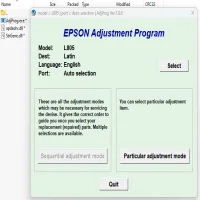
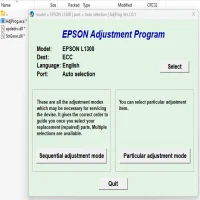
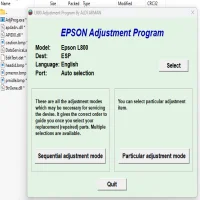
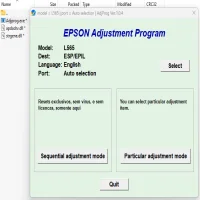
When the program opens, select your printer model (Epson L310) from the list of available printers.
-
From the menu, choose the “Waste Ink Pad Counter” option. This is the feature that will help reset the waste ink counter.
-
Click “Check” to view the current status of the waste ink counter. This step ensures that the software can detect and read the printer's internal data.
Step 4: Reset the Waste Ink Counter
-
After checking the counter, you will see the option to reset the counter. Click “Reset” to begin the process.
-
A confirmation message will pop up, informing you that the reset process is about to start. Click “OK” to proceed.
-
Wait for the reset to complete. Once done, the software will notify you that the process has been successful.
Step 5: Test the Printer
-
After the reset, it's important to test the printer to ensure everything is working as expected.
-
Try printing a document to check for proper functionality. If the reset was successful, the printer should resume printing without errors.
Important Considerations and Cautions
-
Use with caution: The Epson L310 Adjustment Program is a powerful tool, but it should only be used when necessary. Overusing it or incorrectly resetting the printer could cause other issues.
-
Backup data: Before resetting the printer, always back up important printer settings or documents to avoid losing any valuable data.
-
Waste Ink Pads: Resetting the waste ink counter does not empty the physical waste ink pads inside the printer. These pads may still need to be replaced if they are saturated with ink, as continued printing with full pads can damage the printer.
-
Warranty concerns: Using third-party adjustment software may void the manufacturer’s warranty. Always check the terms of your warranty before proceeding with any reset operations.
-
Use of the resetter tool: It's important to ensure that the resetter software you are using is compatible with your Epson L310 model. Using incompatible software may lead to printer malfunctions.
Conclusion
The Epson L310 Adjustment Program (Resetter) is a helpful tool that can reset the waste ink counter and help resolve common printing issues like the “Ink Waste Pad is Full” error. However, users should be aware of the potential risks and responsibilities involved when using this software. It’s a simple solution to get your printer back to working condition, but regular maintenance and proper care of the printer will ultimately help extend its lifespan.
If you are unsure about using this software or are experiencing frequent issues with the waste ink counter, it may be wise to consult a professional technician for further assistance.
Rate the App
User Reviews

Popular Apps