Latest Version
More About Epson L362 Adjustment Program ( Resetter )
Epson L362 Adjustment Program (Resetter)
The Epson L362 printer, a popular model in the Epson EcoTank series, is known for its high printing capacity and cost-effective ink system. However, like all printers, it is bound to face maintenance issues over time. One of the common problems that users experience is the printer’s ink pad becoming full. This occurs when the printer reaches a certain number of prints or when waste ink accumulates in the pads during normal operations. The ink pad issue often triggers a warning message, urging users to reset the printer. This is where the Epson L362 Adjustment Program, commonly referred to as a "resetter," comes in handy.
What is the Epson L362 Adjustment Program?
The Epson L362 Adjustment Program, or resetter, is a software tool that helps users resolve specific issues related to their printer’s ink pad counter. It is primarily used to reset the waste ink counter in the Epson L362, allowing the printer to continue functioning without any error messages. The tool works by adjusting internal counters that track the ink pad’s usage, which gets "full" after a certain number of prints. Once reset, the printer can continue operating without triggering the error related to the ink pad overflow.
Why Do You Need the Adjustment Program?
Printers like the Epson L362 use an ink pad to absorb excess ink during printing. Over time, these ink pads can accumulate ink from cleaning cycles, printhead alignments, and other printer functions. When the ink pad reaches its capacity, the printer will display an error indicating the pads are full, which halts printing until resolved.
The Adjustment Program is crucial because it allows users to reset the internal counter for the waste ink pad, effectively "clearing" the warning. Without it, users would need to physically replace the ink pads, a complicated and costly process. The resetter is an efficient way to avoid unnecessary repairs and extend the printer's life.
How to Use the Epson L362 Adjustment Program
Step 1: Download the Epson L362 Adjustment Program Before proceeding, you will need to find a reliable source to download the Epson L362 Adjustment Program. Be cautious when downloading software from third-party sites to avoid malware or unreliable programs. Once downloaded, install the program on your computer by following the on-screen instructions.
Step 2: Connect Your Printer to Your Computer Ensure that the Epson L362 printer is properly connected to your computer. You can connect the printer using a USB cable or via Wi-Fi, depending on your model and setup.
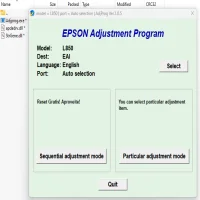
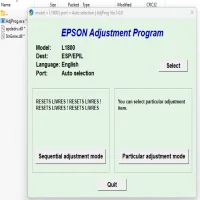
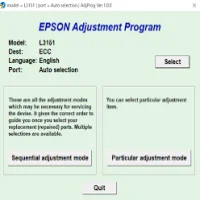
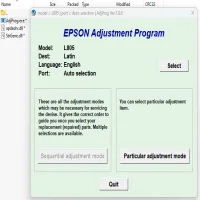
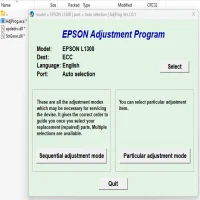
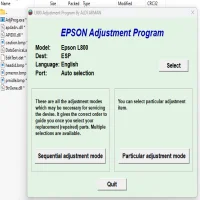
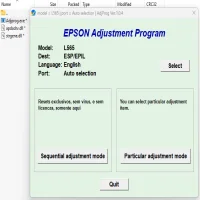
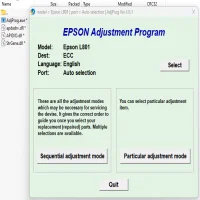
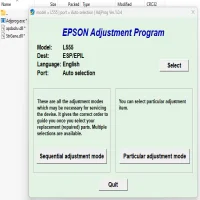
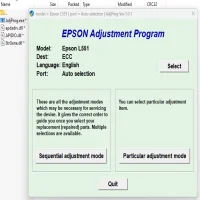
Step 3: Run the Adjustment Program Launch the Epson L362 Adjustment Program on your computer. The program will require administrative rights to run properly. If prompted, grant the necessary permissions.
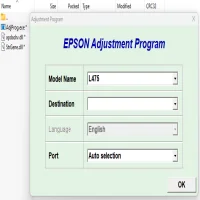
Step 4: Select Your Printer Model Once the program is open, select the Epson L362 printer model from the list. This step ensures that the tool is targeting the correct printer for adjustments.
Step 5: Choose the “Waste Ink Pad Counter” Option The next step is to navigate to the "Waste Ink Pad Counter" option in the program. This function allows you to monitor the status of the ink pads and reset the waste ink counter.
Step 6: Reset the Ink Pad Counter Click on the "Reset" button to begin the process. The program will reset the waste ink counter to zero, clearing the error. After the reset, you may be prompted to turn off and on the printer to complete the process.
Step 7: Test the Printer Once the reset is complete, test your printer by printing a page. Ensure that there are no error messages, and that the printer functions as normal.
Cautionary Notes
- Backup Your Data: Before using the Epson L362 Adjustment Program, it’s important to back up any data related to your printer’s settings or previous print jobs.
- Waste Ink Pads Still Need Attention: While the Adjustment Program resets the counter, it does not physically clear the waste ink pads. It’s recommended to periodically check the ink pads for excessive ink buildup and replace them if needed.
- Use with Caution: The Epson L362 Adjustment Program is a powerful tool. Improper use can lead to issues with your printer. Always follow the instructions carefully and use it only when necessary.
Conclusion
The Epson L362 Adjustment Program (resetter) is an essential tool for maintaining your Epson printer’s longevity and performance. By resetting the waste ink counter, users can extend the life of their printer and avoid costly repairs or replacements. However, it’s essential to remember that the resetter does not solve the underlying problem of ink pad overflow, so regular maintenance is crucial. Always use the Adjustment Program responsibly, and consult professional help if needed.
Rate the App
User Reviews

Popular Apps