Latest Version
More About Epson L520 Adjustment Program ( Resetter )
Epson L520 Adjustment Program (Resetter) – A Comprehensive Guide
The Epson L520 is a multifunction printer that offers efficient performance, especially in environments that require high-volume printing, scanning, and copying. However, like many Epson printers, the L520 may encounter issues such as the "waste ink pad" error, a common problem in inkjet printers over time. To solve such problems and reset the printer's internal counters, users can use the Epson L520 Adjustment Program (commonly referred to as a resetter).
In this guide, we will walk you through what the Epson L520 Adjustment Program is, how it works, and how to use it effectively without causing damage to your device.
What is the Epson L520 Adjustment Program?
The Adjustment Program for the Epson L520 is a software tool designed to help users reset various printer settings. These include fixing the waste ink pad counter, resetting the printer after certain errors, or recalibrating the internal functions for continued high-quality printing.
The program is typically used in cases where the printer has reached its internal counter limits for waste ink pads. This is a built-in feature that prevents ink from overflowing and damaging the printer’s internal components. However, when this counter is full, the printer will stop working unless reset.
Why Do You Need the Epson L520 Adjustment Program?
Printers are equipped with a waste ink pad counter that monitors the ink that’s being absorbed into the waste pads. Over time, this ink pad accumulates ink as part of the printer’s cleaning cycles. Once the ink pad is saturated, the printer will stop working to prevent further damage to the internal components.
Using the Epson L520 Adjustment Program will reset the counter, allowing you to continue using the printer without issues related to waste ink. This can be particularly useful for individuals or businesses with high printing volumes.
How to Use the Epson L520 Adjustment Program?
Before you proceed with using the adjustment program, it is crucial to have the correct software version and ensure that you’re following the right steps. Misuse of the software could lead to permanent damage to your printer or other unintended errors.
Step-by-Step Guide:
-
Download the Epson L520 Adjustment Program:
- Ensure you are downloading the program from a reliable and trusted source. Many websites offer this tool, but not all are secure.
- Once you find the correct version, download the program to your computer.
-
Install the Program:
- The downloaded file is often in a compressed format (such as ZIP). Extract the contents to a folder of your choice.
- Follow the on-screen instructions to install the program.
-
Connect the Printer:
- Connect your Epson L520 printer to the computer via USB or over the network.
- Ensure the printer is powered on and ready for use.
-
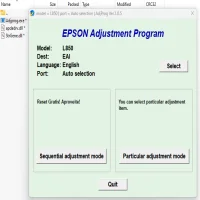
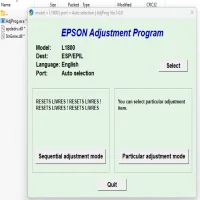
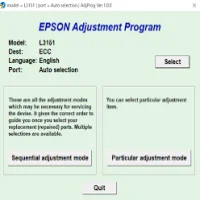
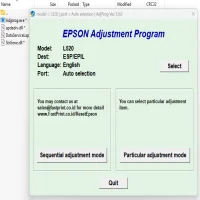
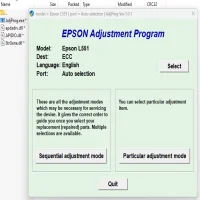
Open the Adjustment Program:
- Launch the installed adjustment program.
- The software should automatically detect your connected Epson L520 printer.
-
Select the Function:
- The program has a variety of functions, such as resetting the waste ink counter, adjusting the printer’s head alignment, and more.
- Select the Waste Ink Pad Counter reset option if the printer is showing a waste ink pad error.
-
Run the Reset Process:
- Once the function is selected, click the Start or Reset button to begin the process.
- The software will communicate with the printer to reset the internal counter. During this process, the printer may make some sounds as it performs the reset.
-
Complete the Reset:
- After the reset process is completed, the software will notify you that the reset was successful.
- You can now safely turn off the printer, wait a few moments, and power it back on.
-
Test the Printer:
- Print a test page or document to ensure the printer is functioning properly.
- If the reset was successful, your printer should be free from any waste ink pad errors.
Important Tips:
- Backup Data: Always back up your important documents before performing any reset. While the adjustment program typically does not affect your files, it’s good practice to be cautious.
- Avoid Overuse: Do not use the adjustment program repeatedly for issues that are not related to the waste ink counter. This could wear down the printer or cause other errors.
- Check for Firmware Updates: Sometimes, updating the printer firmware can resolve issues that the adjustment program cannot address.
- Safety First: Make sure you are using a trusted source for the adjustment program. Using counterfeit or malicious software could cause harm to your printer.
Conclusion
The Epson L520 Adjustment Program is an essential tool for maintaining your printer’s functionality, particularly when dealing with the common issue of a full waste ink pad. By using the resetter program, you can extend the life of your printer and continue to enjoy high-quality prints without worrying about error messages.
Just ensure you follow the provided instructions carefully to avoid complications. The program provides a convenient and efficient way to handle maintenance tasks that would otherwise require professional repair services. Always take necessary precautions when using third-party software and keep your printer in optimal condition to ensure it performs at its best.
Rate the App
User Reviews

Popular Apps