

Latest Version
Download NowMore About Epson Stylus DX7400 Adjustment Program
Epson Stylus DX7400 Adjustment Program: A Comprehensive Guide
The Epson Stylus DX7400 is a popular all-in-one inkjet printer known for its high-quality printing capabilities. However, like many other printers, it can sometimes face issues such as ink overflow, misalignments, or print head clogging that require adjustments. The Epson Stylus DX7400 Adjustment Program is an essential tool for users looking to restore their printer to peak performance, enabling them to resolve issues without the need for professional repairs.
What is the Epson Stylus DX7400 Adjustment Program?
The Epson Stylus DX7400 Adjustment Program is a specialized software tool designed to help users troubleshoot and resolve a variety of printer issues, such as ink pads being full, printer head misalignment, and excessive ink waste. This program allows users to make a wide range of adjustments, including resetting the printer’s internal counters, cleaning the print heads, and recalibrating the print settings.
Why Do You Need the Epson Stylus DX7400 Adjustment Program?
There are several reasons why you may need the Adjustment Program for your Epson Stylus DX7400. These include:
-
Ink Pad Full Error: Over time, your printer’s ink pads can fill up with excess ink, leading to an error message. The Adjustment Program allows you to reset the ink pad counter, eliminating the error and allowing you to continue printing without issues.
-
Print Quality Problems: If you notice that your prints are coming out faded, streaky, or blurred, the Adjustment Program can be used to clean the print heads, ensuring that ink flows smoothly onto the paper.
-
Head Alignment Issues: If the printer is producing misaligned or skewed prints, the Adjustment Program can help realign the print heads, improving print accuracy and image sharpness.
-
Maintenance and Calibration: Regular use of the Adjustment Program can help maintain the printer in peak condition, ensuring consistent print quality, reducing the risk of clogging, and extending the lifespan of your device.
How to Use the Epson Stylus DX7400 Adjustment Program?
Using the Epson Stylus DX7400 Adjustment Program is fairly simple, but it does require careful attention to detail. Here’s a step-by-step guide:
-
Download the Adjustment Program: The first step is to obtain the software. It is available from third-party websites or Epson’s support page (depending on your region). Be cautious about downloading from unofficial sites to avoid malware.
-
Install the Program: After downloading the software, run the installation file and follow the on-screen instructions to install it on your computer.
-
Connect the Printer: Ensure that your Epson Stylus DX7400 is properly connected to your computer via USB or Wi-Fi.
-
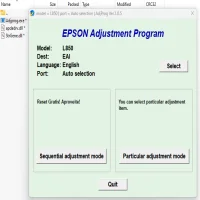
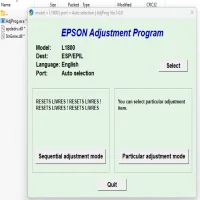
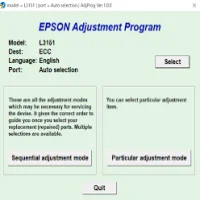
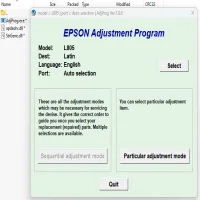
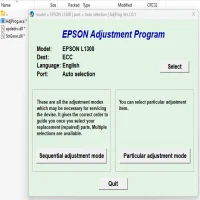
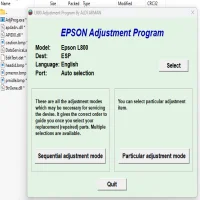
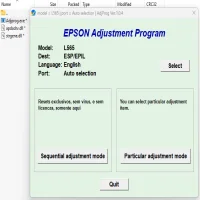
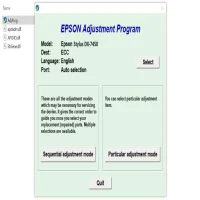
Run the Adjustment Program: Launch the program and select your printer model (Epson Stylus DX7400) from the list of supported printers. If you’re unsure, you can use the “Detect” option.
-
Select the Desired Adjustment Function: The Adjustment Program provides multiple options, including head cleaning, ink pad resetting, and head alignment. Choose the function that best suits your needs and follow the instructions provided.
-
Follow On-Screen Instructions: For each adjustment, the program will guide you through the necessary steps. For example, if you are performing a head cleaning, the program will prompt you to wait while it cleans the print heads.
-
Test Print: After completing the necessary adjustments, perform a test print to ensure that the issue has been resolved. If you are still experiencing problems, repeat the process or explore other adjustment options.
Common Features of the Epson Stylus DX7400 Adjustment Program
- Ink Pad Reset: This function resets the printer's internal counter, allowing you to continue printing after an ink pad full error message.
- Head Cleaning: This tool helps to clear any blockages in the print head, ensuring smooth ink flow and preventing issues like streaks or color inconsistencies.
- Head Alignment: Misaligned heads can cause printing defects. The program helps align them to improve print quality.
- Nozzle Check: The nozzle check function allows you to verify whether any print heads are clogged, helping you prevent printing issues before they become too serious.
Troubleshooting Common Issues
While the Epson Stylus DX7400 Adjustment Program can fix many issues, sometimes things may not go as planned. Here are some common problems and their solutions:
-
The Program Doesn’t Detect the Printer:
- Ensure the printer is connected correctly to your computer and powered on.
- Check if your printer drivers are installed correctly and are up to date.
-
The Ink Pad Reset Isn’t Working:
- Make sure you’ve followed all the steps accurately, including any necessary restart procedures. If issues persist, try reinstalling the program.
-
The Printer Is Still Printing Poorly:
- If print quality issues persist after running the cleaning and alignment functions, the issue could be due to worn-out cartridges, dried ink, or hardware malfunctions.
Conclusion
The Epson Stylus DX7400 Adjustment Program is an invaluable tool for anyone using this printer model, helping users perform routine maintenance and resolve common printer issues without needing to rely on costly repairs. By following the steps outlined above, you can ensure that your printer continues to deliver high-quality prints while avoiding potential downtime. Regular maintenance using this software will not only improve performance but also extend the lifespan of your printer.
Rate the App
User Reviews


Popular Apps